
What is vamAI?
vamAI lets you talk with your Virt‑A‑Mate characters, by voice or by text. Here's what it is and how the pieces fit.
vamAI lets you talk with your Virt‑A‑Mate (VaM) characters, by voice or by text. She answers in her own voice, reacts to what happens in your scene, and remembers what you share with her.
vamAI is a Windows app that runs beside VaM on your PC. It works with AI services you choose and pay for yourself, so your conversations go straight from your computer to those services.
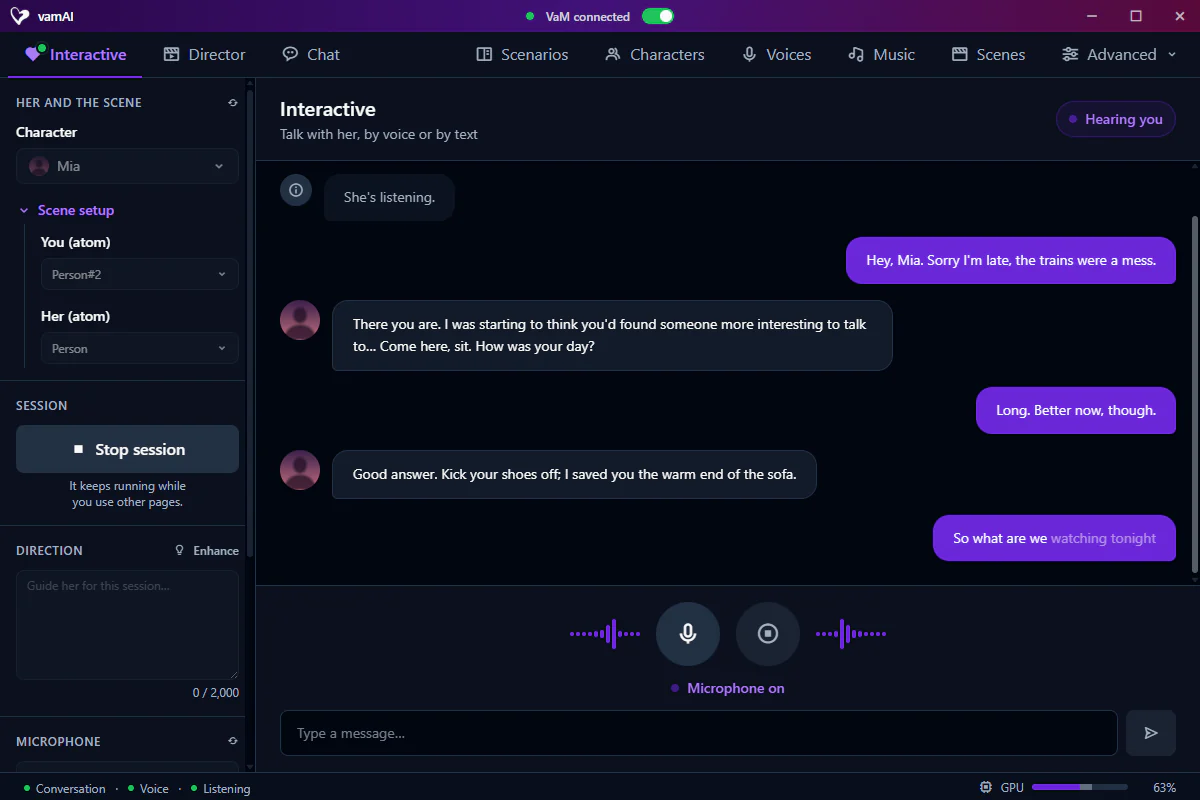
Two ways to play
| Mode | What it is | Who leads |
|---|---|---|
| Interactive Mode | A live conversation with your character. You talk (or type), she answers out loud and can act in the scene. | You. |
| Director Mode | The AI plans and plays out a whole scene on its own: dialogue, actions and pacing. | The AI. You set it up, then watch. |
Start with Interactive Mode. It's the heart of vamAI and the quickest way to feel what it can do. Director Mode is a good next step once you're comfortable.
How the pieces fit
- The vamAI app. It runs on your PC, keeps your characters, voices and memories, and talks to the AI services.
- The vamAI plugin for VaM. A small, free VaM add-on (a
.varpackage, on the VaM Hub and the downloads page) that plays her voice in your scene and carries out what the app asks for. It finds the app on its own whenever both are open. - Your AI services. You add your own key for each one, and each service bills you directly:
- a language model that writes her replies: Venice, an OpenAI-compatible service (OpenAI, OpenRouter, xAI, or LM Studio / Ollama on your PC), or a local model that runs on your PC
- a voice: ElevenLabs, Deepgram or Hume
- listening, which turns your speech into text: Deepgram, or Whisper on your PC
There's no vamAI middleman in your conversations. Your keys are stored encrypted on your PC.

What you'll need
- A Windows 10 or 11 PC that already runs Virt‑A‑Mate well. See System requirements.
- Virt‑A‑Mate 1.19 or newer.
- Accounts with the AI services you want to use, and an API key for each. Choosing your AI services helps you pick.
- A microphone, if you want to talk out loud. Typing works too.
- A vamAI membership, Pro or Max on Patreon. You sign in with Patreon in the app, and if you're new you can try everything in Max free for 7 days first. Without one, you can install and set everything up, but not start a conversation. See Your membership.
Next steps
Ready? Head to Download & install. It takes a few minutes, and the app walks you through the rest. The path from download to your first conversation:
- Download & install the app, and run its setup.
- Connect Virt‑A‑Mate: install the plugin and allow it in VaM.
- Meet Nora, the character who comes with vamAI.
- Have your first conversation.