
Choosing your AI services
vamAI runs on AI services you choose. Here's what each one does, which ones vamAI works with, and where to set them up.
Your character comes to life through a few AI services working together. You choose each one, add your own key, and the service bills your account directly. vamAI never resells AI and adds no fees.
The services, in plain words
| Service | What it does | Needed for |
|---|---|---|
| Conversation (language model) | Writes her replies and decides what she does. | Everything |
| Voice | Speaks her lines aloud. | Talking out loud |
| Listening | Turns what you say into text. | Talking out loud |
| Portraits (images) | Makes pictures of your characters. | Optional |
| Lip sync | Moves her face and lips while she speaks. | Optional |
A voice conversation needs conversation, voice and listening; typing to her needs only conversation. Portraits and lip sync are extras.
Who vamAI works with
Conversation
- Venice AI. The recommended choice. One Venice key also covers portraits.
- OpenAI-compatible. OpenAI, OpenRouter or xAI with your key, or a server on your PC such as LM Studio or Ollama. See OpenAI-compatible services.
- Local model. A language model that runs on your PC. You download it from inside vamAI. See Running AI on your PC.
Voice
- ElevenLabs. The recommended choice: rich, expressive voices. You can design new voices, clone a voice from a recording, and make filler audio. Nora's voice is an ElevenLabs voice, and your ElevenLabs key also makes background music, whichever voice service you use.
- Deepgram. Fast, clear, ready-made voices. One Deepgram key also covers listening.
- Hume AI. Expressive voices that can be told how to deliver each line. You can design new voices too.
Voices always come from an online service, so voice needs an internet connection. See Voice library for choosing and designing voices.
Listening
- Deepgram. The recommended choice: fast, and nothing to download.
- Whisper. Runs on your PC, so what you say stays on your computer. Downloaded from inside vamAI. Best with an NVIDIA graphics card.
Portraits
- Venice AI, with the same key as conversation.
Lip sync
- VaM Defaults. VaM animates her face on its own. Nothing to set up.
- Audio2Face. Detailed lip-sync that runs on your PC. Needs an NVIDIA graphics card. See Facial animation & lip-sync.
The Providers page
Open Advanced → Providers. It's where you choose services and add keys. vamAI also opens it from the yellow "Add your AI provider keys to get started" bar and the Open Providers buttons.
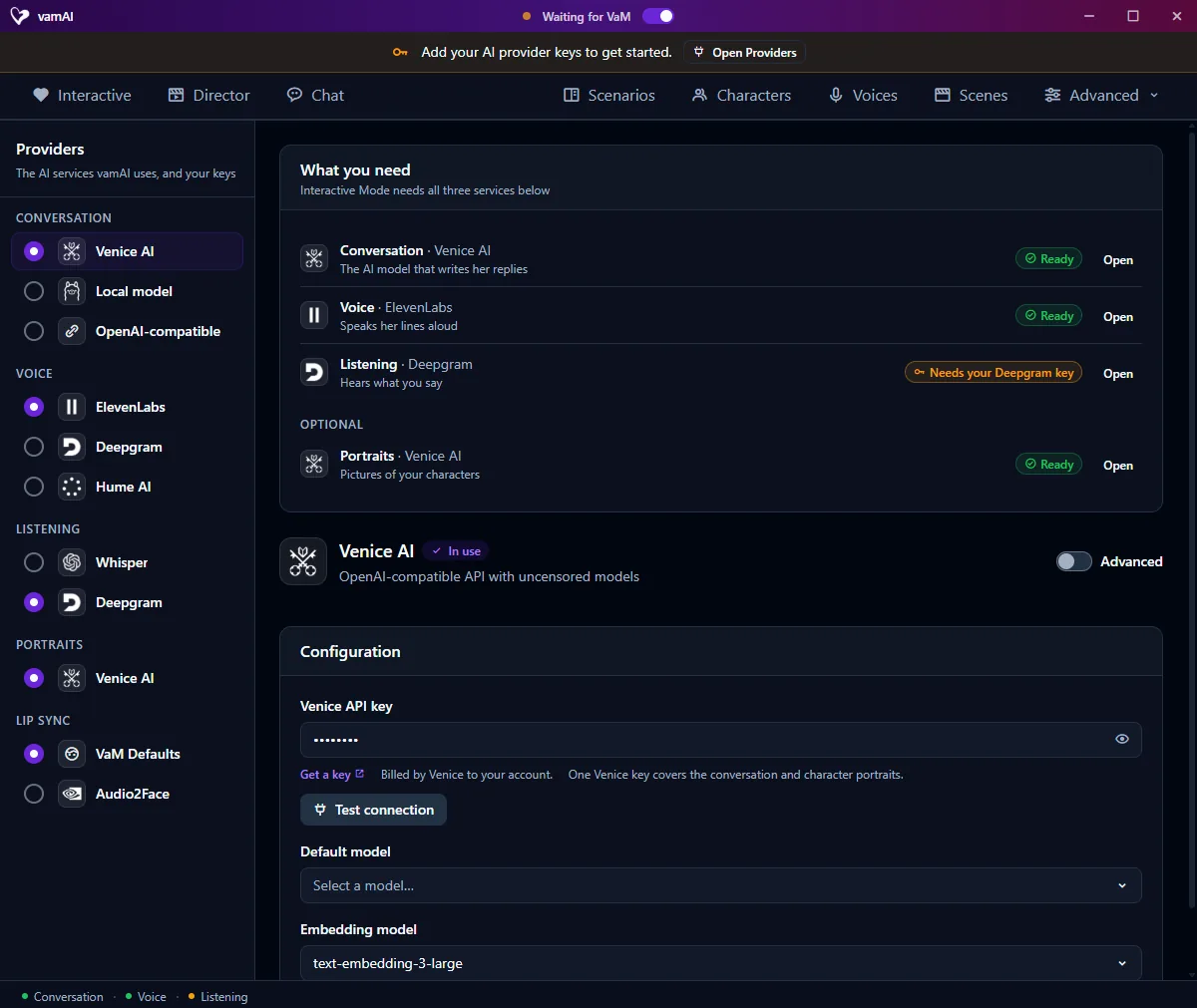
- The list on the left groups services by job: Conversation, Voice, Listening, Portraits and Lip sync. The filled circle marks the one in use for each job. Click another circle to switch; vamAI says what changed, and Undo puts it back.
- What you need, at the top, shows the service chosen for each job and where it stands: Needs your … key, Key added (saved, but not confirmed yet), or Ready once a connection test or a real request has worked. A service that runs on your PC reads On this computer once it's downloaded. Open jumps to that service.
- Choosing a service shows its settings. The one in use shows an In use badge; any other has a Use for … button, such as Use for conversation.
- Test connection checks the service answers, using your key.
- Advanced shows extra settings for tinkerers, such as Model roles for language models (below). You can leave it off.
Changes save on their own. You'll see Saved in the bottom-left corner.
You choose a service for each job separately, so you can mix: for example Venice for conversation, ElevenLabs for her voice and Deepgram for listening.
One key per service company
Some companies offer more than one job. You add their key once, and it works for every job they do:
- One Venice key covers conversation and portraits.
- One Deepgram key covers listening and voice.
Under each key field, Get a key opens the company's page for creating one, and a note says who bills you, such as "Billed by Venice to your account." See Adding your API keys.
Model roles
With Advanced on, a language model's settings include Model roles. vamAI uses the language model for four kinds of work, and you can pick a different model for each:
- her replies, in Interactive Mode, text chat and Director Mode
- deciding what happens next, such as Director plans and what she does on her own
- background work, such as memory and enhancing your text
- reading the scene image (Vision), which needs a model that understands images
Leave a role on Default model to use the service's main model. Most people never change these.
The status bar
The bar along the bottom of the vamAI window shows Conversation, Voice and Listening, each with a dot: green when it's connected, yellow while it's connecting or still needs your key, red when it can't be reached, and grey when it isn't connected. Hover over one for details, or click it to open that service in Providers. On the right, while a service runs on your PC, a GPU meter shows how much of your graphics card's memory is in use.
Next steps
- Add your keys: Adding your API keys.
- Use OpenAI, OpenRouter, xAI or a server on your PC: OpenAI-compatible services.
- Run listening, conversation or lip-sync on your own PC: Running AI on your PC.