
Connecting Virt‑A‑Mate
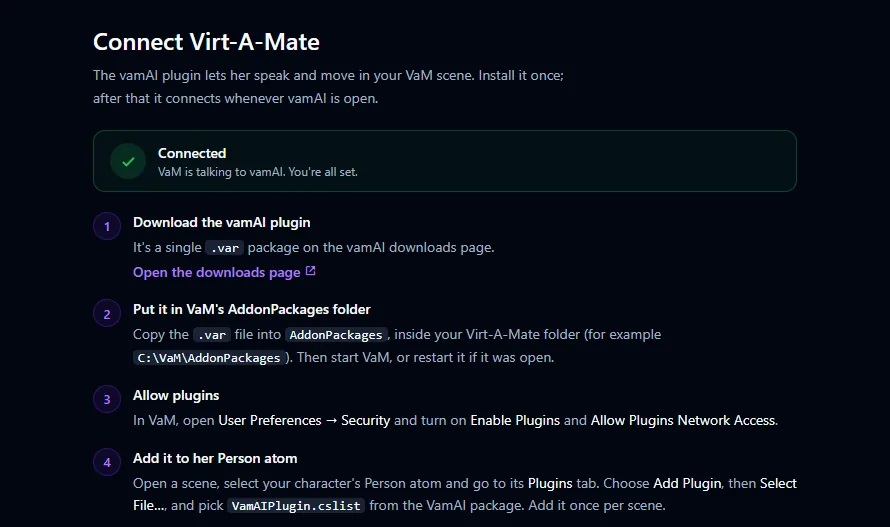
Install the vamAI plugin in VaM once, from the VaM Hub or the downloads page. After that, it connects to vamAI by itself whenever both are open.
The vamAI plugin lets your character speak and move in your VaM scene. It plays her voice, tells vamAI what's in the scene, and carries out the actions vamAI asks for. It has no AI of its own and does nothing without the vamAI app.
You install it once. After that, it connects whenever vamAI is open.
Step 1: Get the plugin
The plugin is one free VaM package (a .var file). Get it either way; both are the same plugin.
- From the VaM Hub. In VaM, open the Hub, search for VamAI (the plugin's listing) and download it. VaM puts it in your
AddonPackagesfolder for you. - From the downloads page. Copy the
.varfile into theAddonPackagesfolder inside your Virt‑A‑Mate folder, for exampleC:\VaM\AddonPackages. The setup in vamAI links there too (Open the downloads page).
Then start VaM, or restart it if it was already open, so it finds the new package.
Step 2: Allow plugins in VaM
In VaM, open User Preferences → Security and turn on:
- Enable Plugins
- Allow Plugins Network Access
The plugin needs network access to reach vamAI. It only ever talks to vamAI on this same PC.
With Allow Plugins Network Access off, VaM refuses to load the plugin, with its own message about the plugin "requiring networking". There's no vamAI panel then, and vamAI's title bar just keeps reading Waiting for VaM. Turn the setting on and reload the scene.
Step 3: Add it to your character
- Open a scene and select your character's Person atom.
- Go to its Plugins tab.
- Choose Add Plugin, then Select File...
- Open the VamAI package and pick
VamAIPlugin.cslist.
The first time a scene loads the plugin, VaM may ask "Allow load of plugins from addon VamAI.VamAIPlugin…?". Choose to allow it. To stop VaM asking again for this version, see VaM asks to allow the plugin again.
Add it once per scene. If a scene has two copies, the second one stays idle and says so in its panel.
Save your scene after adding the plugin. Next time you load it, the plugin comes back with it, settings and all.
Step 4: It connects by itself
Keep vamAI open while you play. The plugin finds it on its own, and both sides show when they're connected:
- In VaM, the bar at the top of the plugin's panel reads Connected to vamAI. Until then it reads Waiting for the vamAI app…, and Reconnecting to vamAI… if vamAI closes.
- In vamAI, the title bar at the top of the window reads VaM connected with a green dot. While it waits, it reads Waiting for VaM.
If vamAI is closed, the plugin keeps trying in the background and connects as soon as you open vamAI. Everything on the plugin's panel, from starting a session in VaM to caption sizes, is in The vamAI panel in VaM.
The title-bar switch
The switch in the vamAI title bar turns the VaM connection off and on. It's on every time vamAI starts, so you normally never touch it. If you turn it off, the title bar reads VaM connection off until you turn it back on.
It won't connect?
Check these in order:
- vamAI is open, and its title bar doesn't read VaM connection off.
- The plugin is on the Person atom and loaded: its panel opens from the atom's Plugins tab. If VaM showed a message instead, read it: it's usually one of the two settings in Step 2.
- Enable Plugins and Allow Plugins Network Access are on in VaM's User Preferences → Security.
- The port matches. If you changed it in vamAI (Advanced → Settings → VaM connection, then Advanced on the Connection card), set the same port in the plugin's Settings tab and press Apply.
- Only one copy of vamAI is running. If another copy (or another program) holds the port, vamAI tells you so.
Still stuck? See Troubleshooting.
Next steps
Everything connected? Meet the character who comes with vamAI, Nora, then have Your first conversation.