
Download & install
vamAI is a portable zip. Unzip it into a folder you own, start vamAI.exe, and the setup walks you through the rest.
There's no installer. vamAI comes as a zip file, and the folder inside it is the whole app. Everything vamAI saves stays in that folder, so it's easy to move, back up or remove.
You need a Windows 10 or 11 PC that runs Virt‑A‑Mate 1.19 or newer. See System requirements.
Step 1: Download vamAI
Open the downloads page and download the vamAI app (a .zip file). You'll also need the VaM plugin (a .var file): grab it there too, or from the VaM Hub later, in Connecting Virt‑A‑Mate.
Step 2: Choose a home for vamAI
Pick a plain folder you own, such as C:\vamAI or D:\Games\vamAI.
- Not in Program Files. vamAI can't save its settings there, so it won't start. It tells you so and asks you to move the folder.
- Not in a folder OneDrive keeps in sync, such as a backed-up Documents or Desktop. vamAI's files change all the time and its downloads are large. If you start it from a synced folder, vamAI warns you once.
Step 3: Unzip it
- Right-click the zip and choose Extract All.
- Windows suggests a folder named after the zip. Change it to the drive or folder that should hold vamAI, for example
C:\. - Choose Extract. The zip contains a single vamAI folder, so you end up with
C:\vamAI.
Among the files inside, you'll find:
| File | What it is |
|---|---|
vamAI.exe |
The app. Double-click it to start. |
README.txt |
A short "start here" guide. |
EULA.txt |
The license agreement. |
THIRD_PARTY_NOTICES.txt |
The open-source licenses vamAI uses. |
resources |
Files the app needs. Leave them as they are. |
After the first start, vamAI also creates data, models and sidecars folders here. They hold your settings, characters and downloads. See Where your data lives.
Want vamAI on your desktop? Right-click vamAI.exe, choose Show more options → Send to → Desktop (create shortcut). Keep vamAI.exe itself inside its folder.
Step 4: Start vamAI
Double-click vamAI.exe.
The first time, Windows may show a blue "Windows protected your PC" window. That's because vamAI isn't code-signed yet. Click More info, then Run anyway. You only need to do this once. First launch on Windows explains it in more detail.
Step 5: The setup steps
On first start, vamAI walks you through five short steps. You can go back to most of them later, so don't worry about getting everything perfect.
- Agreement. Read the license agreement and confirm two things: that you're 18 or older, and that you understand the characters are AI fiction. Then choose Accept.
- Account. Choose Sign in with Patreon to bring your Pro or Max membership to this PC or to start your 7-day free trial, or Not now to sign in later. Without a membership you can still finish the setup; conversations need Pro, Max or the trial. See Signing in & devices.
- AI services. Choose a service for her conversation, her voice and listening, and paste your key for each. Test connection checks a key right away. Nora, the character who comes with vamAI, speaks with an ElevenLabs voice, so choose ElevenLabs to talk with her straight away. See Adding your API keys.
- VaM plugin. Shows how to install the plugin. Do it now if VaM is to hand (get the plugin, allow plugins and network access, add it to a Person atom), or choose I'll do this later. The step changes to Connected as soon as the plugin is running in your scene. See Connecting Virt‑A‑Mate.
- Microphone. Choose your microphone, press Start recording and say a sentence. Your words should appear below. It uses the listening service from step 3.
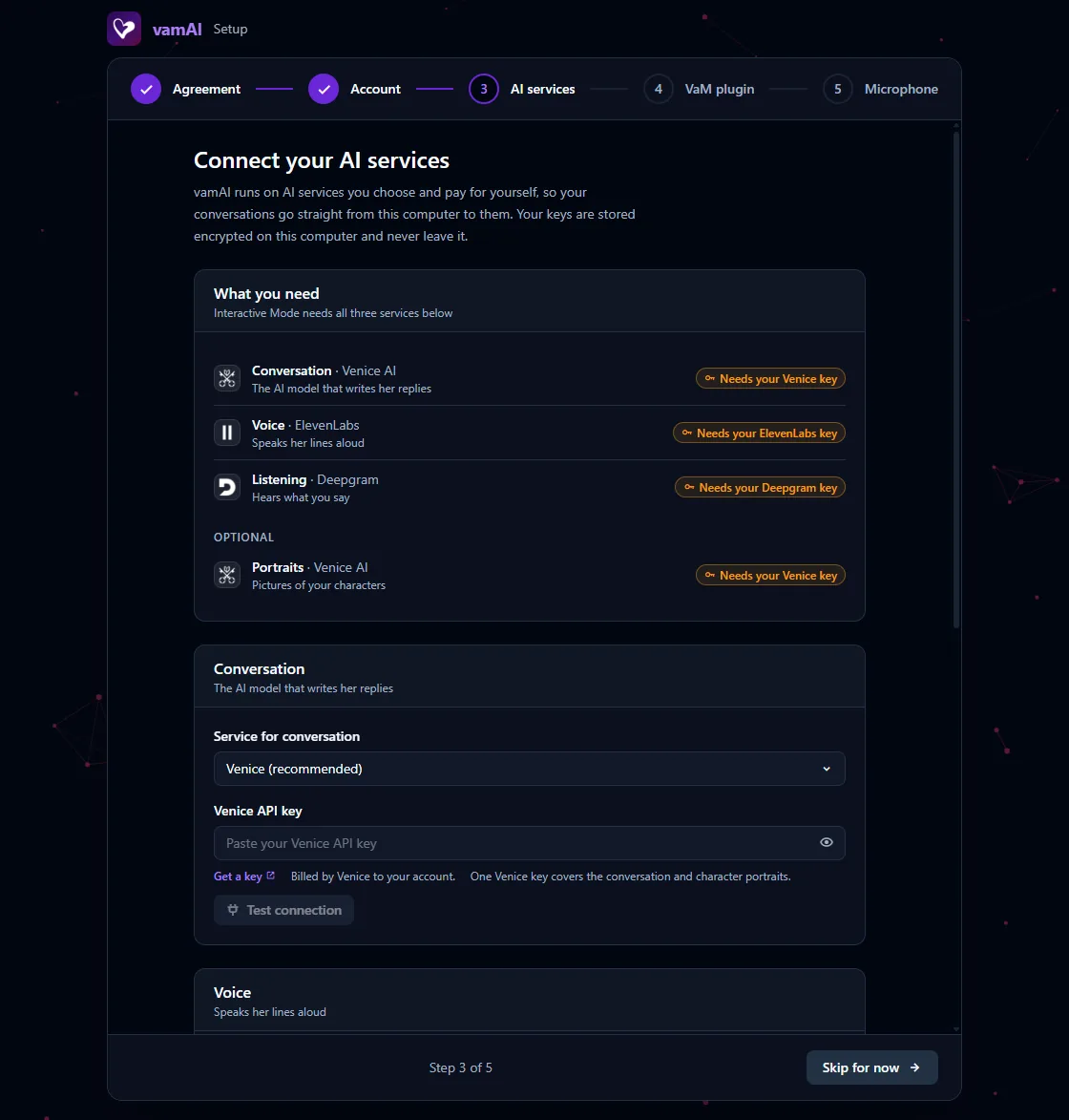
Not ready for a step? Choose Skip for now or I'll do this later. vamAI opens anyway, and the Interactive tab shows a short Getting started checklist until everything is in place.
To go through the setup again, open Advanced → Settings → Help & diagnostics and choose Run setup again.
Next steps
- Install the VaM plugin: Connecting Virt‑A‑Mate.
- See what comes with vamAI: Meet Nora.
- Then have Your first conversation.