
Your first conversation
The quickest path from a fresh setup to talking with your character.
This is the moment it all leads up to: a real conversation with your character. Here's the quickest way there. It takes a few minutes if you've done the setup.
Before you start
You need:
- vamAI open, with your keys added for conversation, voice and listening. See Download & install.
- VaM open with a scene loaded, the vamAI plugin on a Person atom, and the title bar in vamAI reading VaM connected. See Connecting Virt‑A‑Mate.
- A membership or the free trial. A session needs Pro, Max or the 7-day free trial; without one, vamAI says so when you press start and offers the trial. See Your membership.
Step 1: Check the Getting started list
Open the Interactive tab (the heart icon). Until you're ready to talk, the middle of the page shows a short Getting started list with a button for each thing still missing:
- Add your AI provider keys → Open Providers. See Adding your API keys.
- Create a character → Open Characters. A new install already has one, Nora, so this is usually done.
- Connect VaM → How to connect. See Connecting Virt‑A‑Mate.
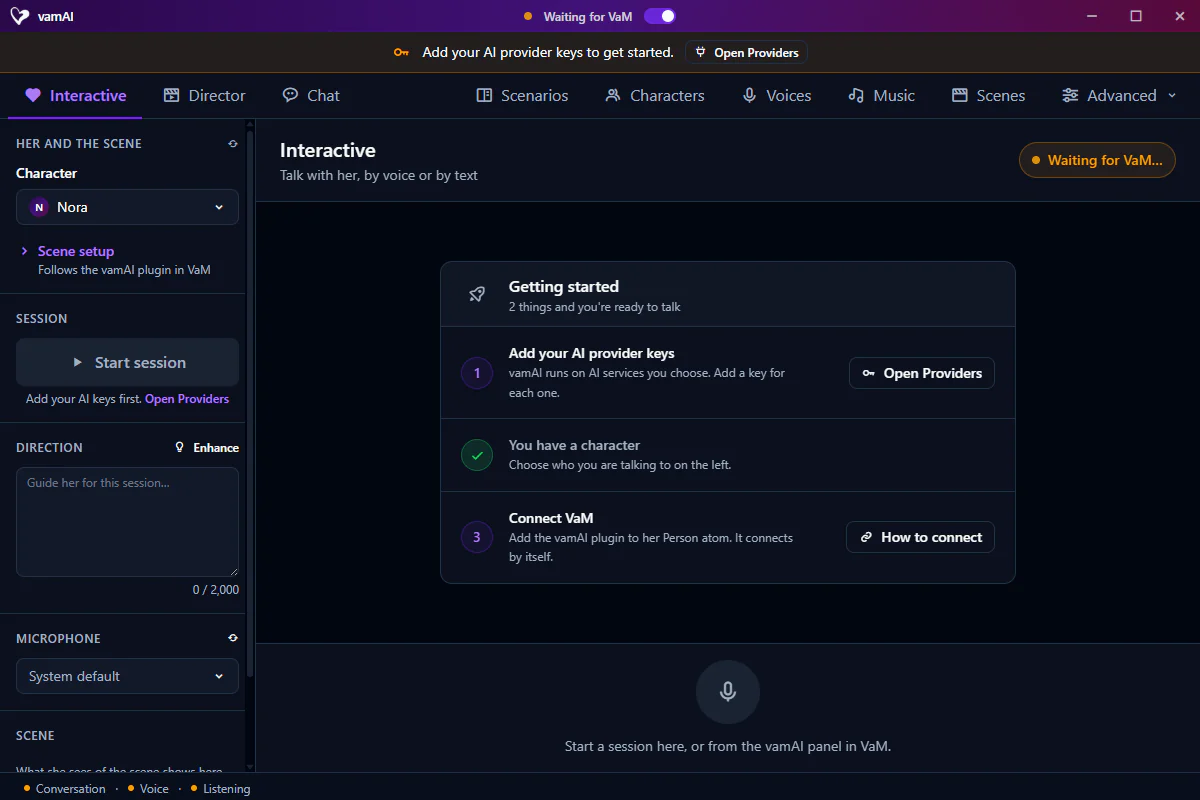
A yellow bar under the title bar, "Add your AI provider keys to get started", means a required service still has no key. Open Providers takes you straight there.
Step 2: Choose her and her atoms
Use Her and the scene on the left:
- Character: Nora is ready to go. Her voice is an ElevenLabs voice; if your voice service is Deepgram or Hume, give her one of theirs first (her profile on the Characters tab, Her voice).
- Scene setup: who is who in your VaM scene. Her (atom) is the Person atom she speaks through, You (atom) the one that stands for you. With one person in the scene, that person is her and the section stays folded; with two, it opens so you can choose.
Optionally, add a line in Direction to set the mood for this session. Enhance can flesh it out for you.
Want your own character instead? On the Characters tab, choose Create a character. A name and a few sentences of personality are enough to start. See Creating characters.
Step 3: Start the session
Choose Start session. You can also start from the vamAI panel in VaM (Start talking).
She takes a moment to look at your scene first; the Session section shows each step. If the button is greyed out, the line under it says why: for example "Waiting for VaM. The vamAI plugin connects by itself." or "Choose a character above to begin."
Step 4: Say hello
Just talk. Your microphone turns on with the session, and the badge at the top of the page moves through Listening, Thinking and Speaking as you go. She answers out loud in VaM.
- Prefer typing? Use the message box at the bottom instead.
- Need a moment? The big microphone button at the bottom mutes and unmutes you.
- Want to jump in? Start talking while she speaks. She stops and listens.
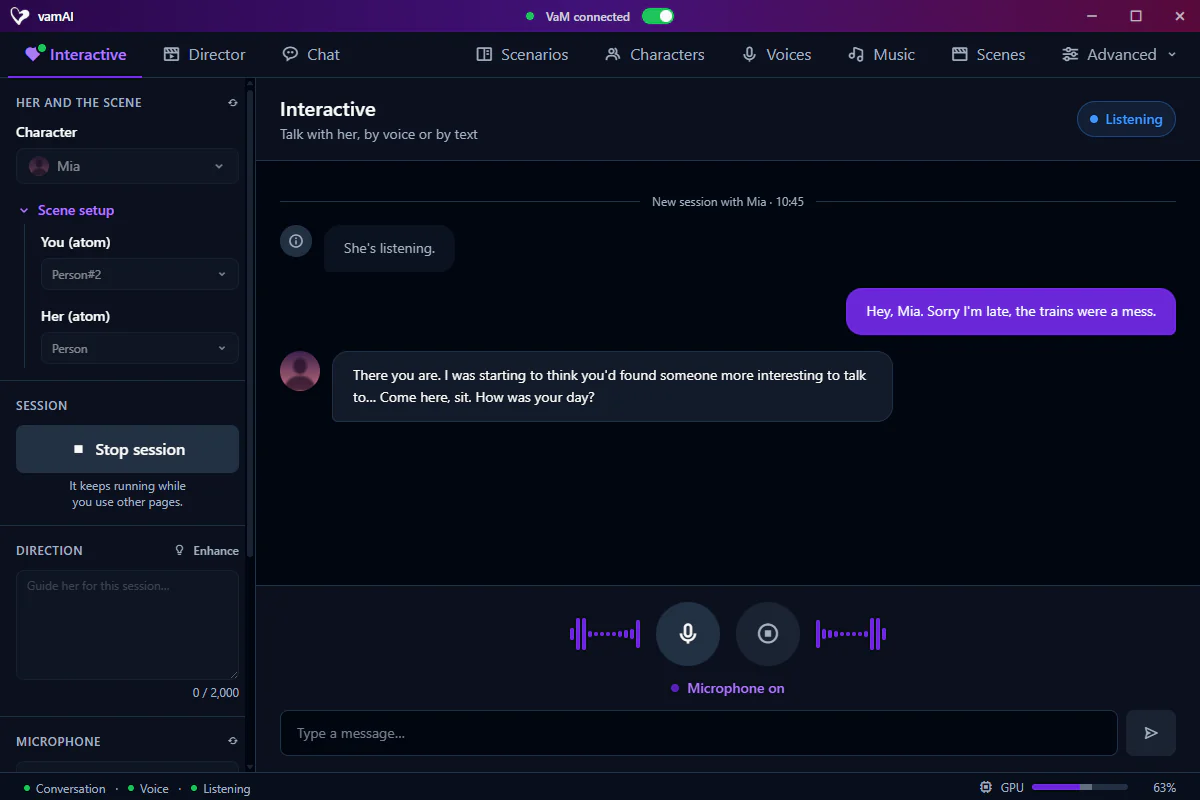
When you're done, choose Stop session. She remembers what you talked about next time.
If it doesn't work
| What happens | Where to look |
|---|---|
| Start session stays greyed out | Read the line under it; it names what's missing. |
| She doesn't hear you | She doesn't hear me |
| You can't hear her | She doesn't speak |
| A message appears in the conversation | Error messages explained |
Where to go next
- Live conversations: everything Interactive Mode can do.
- Creating characters: personality, appearance, portraits and her voice.
- Background music and Facial expressions: set the mood in your scene.
- Director Mode: try One more drink and watch a scene play out.