
Signing in & devices
Sign in with Patreon to use your vamAI membership on this PC, see your membership in Settings → Account, and manage the computers you use.
You sign in to vamAI with your Patreon account. Signing in brings your Pro or Max membership to this computer; with no membership yet, it's how you start your 7-day free trial. Without signing in, the app opens and you can set it up, but its features are off. See Your membership.
Your vamAI sign-in has nothing to do with your AI service keys. Those are separate, and the services bill you directly. See Adding your API keys.
Signing in
You're offered a sign-in during setup, and you can sign in any time from Advanced → Settings → Account.
- Choose Sign in with Patreon. vamAI opens the sign-in page in your web browser.
- Sign in with Patreon there and allow vamAI.
- Your browser hands the sign-in back to vamAI, and you're done.
If your account has no membership yet, vamAI then offers Start your 7-day free trial: everything in Max for 7 days. Choose Start my free trial, or Not now to start it later from Settings → Account. The trial starts when you choose it, not when you sign in.
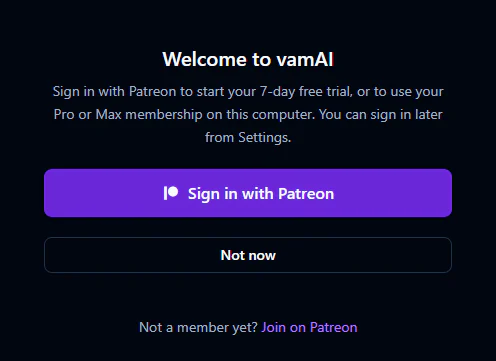
Patreon shares your name, email and membership tier with vamAI. It never shares your payment details.
If the browser doesn't come back to vamAI
Sometimes the browser can't hand the sign-in back on its own. The website then shows you a sign-in code instead.
- In vamAI, choose Paste a code instead.
- Paste the code into Sign-in code and choose Continue with this code.
A code works once, for 5 minutes, and only for the sign-in you started in this window. If it has expired, start the sign-in again.
Other options while vamAI waits:
- Open the sign-in page again if you closed the browser tab.
- Copy the link to open the sign-in page in another browser yourself.
- Cancel to stop and try later.
vamAI waits 5 minutes for your browser. After that it says so: enter a code the website showed you, or choose Start again. If you cancel on the website, vamAI says that too, and Sign in with Patreon starts a fresh sign-in.
Signing in later
Choose Not now during setup to finish setting up without signing in: your AI services, the VaM plugin and your microphone. You can sign in later from Settings → Account, and start your free trial there. Until then the app's features are off. See Your membership.
Your account in Settings
Open Advanced → Settings → Account.
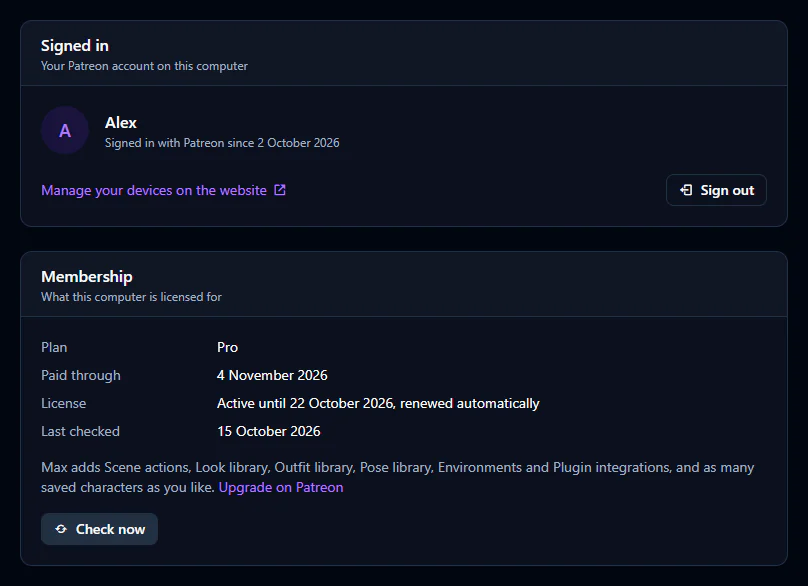
- Signed in shows your Patreon name and when you signed in on this computer, with Manage your devices on the website and Sign out.
- Membership shows what this computer is licensed for:
| Row | What it tells you |
|---|---|
| Plan | Pro, Max, Free trial, or No membership. |
| Trial ends / Paid through | Shown when they apply. |
| License | Active until a date, renewed automatically. Or Offline, with the date it keeps working until. |
| Last checked | The last time vamAI checked your membership. |
Under it, vamAI says what to do next: with no membership, Start my free trial (while your trial is unused) or Join on Patreon; in Pro, what Max adds, with Upgrade on Patreon.
Check now asks for an update straight away, for example right after you join or change your membership on Patreon.
Playing offline
vamAI renews your membership in the background while you're online. If it can't reach vamAI's server, your membership keeps working for a while. The License row shows Offline and the date it keeps working until. Connect to the internet before then, and it renews by itself.
Your AI services need the internet anyway, unless you run them on your PC. See Running AI on your PC.
Devices
Your membership can be used on a limited number of computers at the same time. Each computer you sign in on takes a place on your account.
- To free a place, sign out on that computer (Settings → Account → Sign out), or remove it on the website's License and devices page. Settings → Account → Manage your devices on the website opens it; sign in with Patreon there if the website asks.
- If you're already at the limit, vamAI says: "Your membership is already in use on as many computers as it allows. Remove one on the website, then try again."
- Removing computers is limited to a few at a time, to prevent account sharing. If you've removed several recently, you can remove another one later.
- A removed computer keeps its place for a few days, so you may not be able to add a new one straight away. A computer you haven't used for a month frees its place by itself, and signing in again on the same PC always reuses its own place.
If a computer was removed from your account, vamAI on that computer asks you to sign in again. Signing in adds it back, if there's room.
Signing out
Choose Sign out in Settings → Account and confirm. This computer stops using your membership, and its place on your account is released. Your characters, settings and keys stay on this PC. You can sign in again at any time.
Moving vamAI to another PC or Windows account? You'll need to sign in again there. See Where your data lives.
If something goes wrong
Sign-in and license messages are written to tell you what to do next. The most common ones are listed in Error messages explained.