
Adding your API keys
vamAI uses your own accounts at the AI services you choose. Here's how to get a key, add it, test it, and keep it safe.
vamAI runs on your own accounts at the AI services you choose. You add a key for each one, and each service bills your account directly. There's no middleman and no markup.
An API key is a long private code that lets an app use your account at a service. Treat it like a password: don't share it or post it anywhere.
Where to add keys
- During setup, in the AI services step.
- Any time, in Advanced → Providers. The yellow "Add your AI provider keys to get started" bar and the Open Providers buttons take you there too.
Both places use the same key fields, so a key you add in one shows up in the other.
Adding a key
- Choose the service. In setup, use Service for conversation, Service for voice or Service for listening. In Providers, choose it in the list on the left.
- Under the key field, choose Get a key. It opens the service's own page, where you sign in and create a key.
- Copy the key and paste it into the field, for example Venice API key.
- Choose Test connection.
vamAI saves the key as soon as you paste it, and shows Key saved.
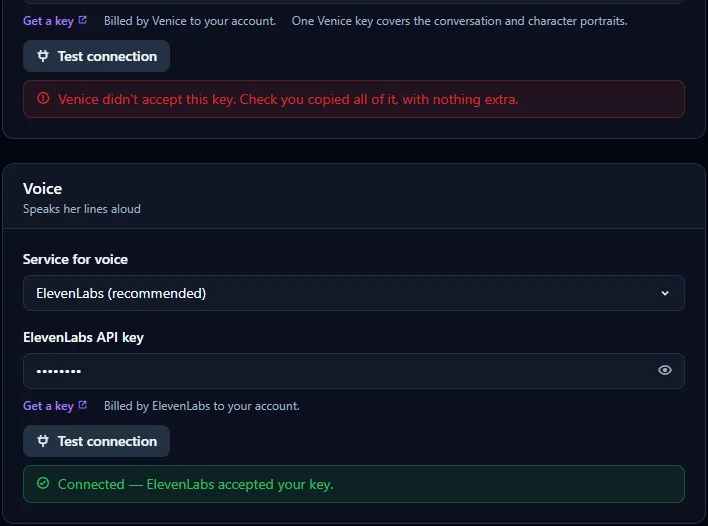
What the test tells you
| You see | What it means |
|---|---|
| Connected — ElevenLabs accepted your key. | All good. |
| Venice didn't accept this key. Check you copied all of it, with nothing extra. | The key is wrong or incomplete. Copy it again, without spaces at either end. |
| Your Deepgram account is out of credit. Add credit on the Deepgram website, then test again. | The key works, but the account at that service has no money left on it. |
| Hume accepted the key, but it isn't allowed to do this. Check its permissions on the Hume website. | The key works but lacks a permission. Check the key's settings on the service's website. |
| Couldn't reach Venice. Check your internet connection. | vamAI couldn't get through. Check you're online, then test again. |
The service names change to match the one you're testing. More messages are explained in Error messages explained.
One key per company
A company that does more than one job needs only one key:
- Venice covers conversation and portraits.
- Deepgram covers listening and voice.
Add it once and every job that company does can use it. The note under the field says so, for example "One Deepgram key covers listening and her voice."
The services, one by one
Venice AI is the recommended service for conversation, and it also makes portraits of your characters.
- Choose Get a key under Venice API key, sign in to Venice and create an API key.
- Paste it, then Test connection.
In Providers, Venice's settings also let you pick its Default model. The recommended one is chosen for you.
ElevenLabs is the recommended service for her voice: rich and expressive. With ElevenLabs you can also design voices, clone a voice from a recording, and make filler audio.
- Choose Get a key under ElevenLabs API key, sign in to ElevenLabs and create an API key.
- Paste it, then Test connection.
Deepgram is the recommended service for listening: fast, with nothing to download. It can also be her voice, with ready-made voices.
- Choose Get a key under Deepgram API key, sign in to Deepgram and create an API key.
- Paste it, then Test connection.
Hume AI is an expressive voice service. Her lines can be delivered with a mood, and you can design new voices.
- Choose Get a key under Hume API key, sign in to Hume and create an API key.
- Paste it, then Test connection.
For conversation through OpenAI, OpenRouter, xAI, or a server on your PC such as LM Studio or Ollama. The key goes in the service's own API key field.
Services that run on your PC, such as Whisper and the local language model, don't need a key. See Running AI on your PC.
How your keys are kept safe
- Your keys are stored encrypted for your Windows account, on this PC only.
- They're only ever sent to the service they belong to.
- Once saved, vamAI never shows a key in full again. The field shows dots and, for longer keys, the last four characters.
- Export diagnostics leaves every key out.
Moving vamAI to another PC or Windows account? The keys can't be read there, so vamAI asks you to enter them again. See Where your data lives.
Changing or removing a key
- To change a key, paste the new one over the old one and test it.
- To remove a key, clear the field.
Voices you design belong to the voice service that made them. If you switch voice service, they stop working until you switch back. See Voice library.
Next steps
With your keys in place, create a character and find her a voice, or jump into Your first conversation.