
Filler audio
Soft ambient sounds that keep your character feeling alive during silence.
Filler audio is the gentle, ambient sound a character makes when she isn't speaking a line: soft breathing, little sighs, quiet moans. It fills the pauses once things turn intimate, in a conversation and in the waits between her lines in Director, so silence never feels lifeless, and she always feels present.
This guide covers what filler audio is, how to make it for a voice, and the settings that control how it plays in a session.
Filler audio belongs to a voice, not a character. You make it once for a voice, and every character using that voice gets it. Voices live in your Voice library.
Nora's voice already has filler audio. It comes with vamAI, so you can hear what filler does in your first session before paying to make any. See Meet Nora.
What you need
- A voice of your own made with ElevenLabs, either designed or cloned. (Nora's voice comes with its filler already made.) See Designing custom voices.
- An ElevenLabs voice model that understands audio tags: Eleven v3 or Eleven v4. You choose the model under Advanced → Providers → ElevenLabs. On other models the generate button stays off and the app tells you why.
- Filler audio is in both memberships, Pro and Max, and in the 7-day free trial. Settings → Account shows what yours includes.
Making filler audio
You make filler audio from a voice's Filler audio tab (open the Voices tab, then Open on the voice). The ElevenLabs design wizard also offers it as its last, optional step, Filler audio.
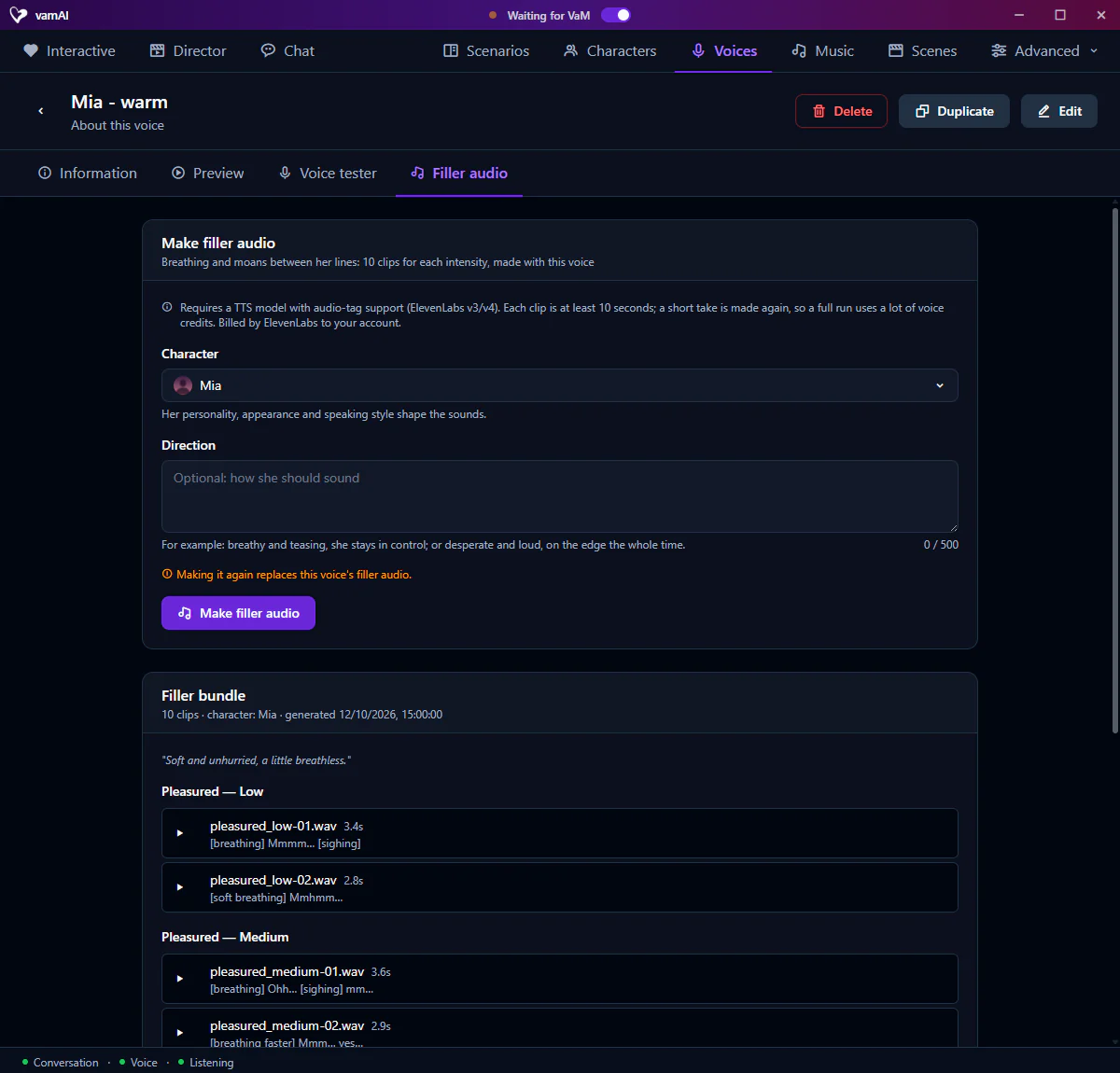
- Under Character, pick a character. Her personality, appearance and speaking style shape the sounds.
- Add a Direction if you like: a note on the mood you want.
- Click Make filler audio and confirm.
vamAI writes and records clips at several intensity levels, ten for each level. A window shows its progress, and you can cancel. When it finishes, every clip is listed on the tab so you can listen to it.
Making a new bundle replaces the voice's old one. If an older bundle is missing a level that was added later, Make the missing ones makes just those clips and keeps the rest.
The cost: read this first
Making filler audio is the most expensive thing in the voice tools, so it's worth knowing before you click.
A full bundle is about 50 clips of 10 seconds or more. Clips that come out too short are made again, up to three tries each. ElevenLabs bills your account for all of it. Filler is entirely optional: skip it when you design a voice, add it later, or never add it at all.
Get the voice right first. Design it, try it in the Voice tester, and only then add filler as the finishing touch.
Playing filler audio in a session
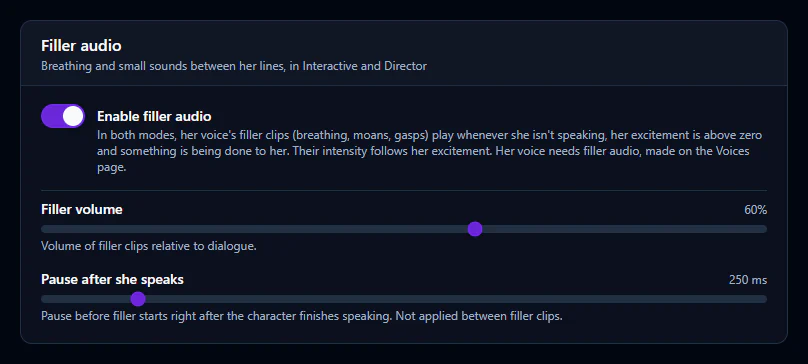
Making the clips is only half of it. Whether and how they play is up to three settings in Advanced → Settings → Sounds, on the Filler audio card. They apply to Interactive and Director alike:
| Setting | What it does |
|---|---|
| Enable filler audio | Turns filler on or off, in Interactive and Director alike. On by default; it plays only once her voice has filler clips. |
| Filler volume | How loud the clips are, compared with her speech. Keep it subtle: filler works best felt rather than noticed. |
| Pause after she speaks | How long to wait after she finishes speaking before filler starts. Longer leaves a clean pause; shorter keeps her audibly present. |
Filler plays when she isn't speaking: between her replies in Interactive, and in Director between her lines, through the scenario's waits and while the next round is being made. It only plays while her excitement in the scene is above zero and something is being done to her, and it follows how high her excitement is.
If filler feels too noticeable, lower the Filler volume and lengthen Pause after she speaks before you turn it off. A little goes a long way.
Nothing plays unless the character has a voice (Her voice on her profile) and that voice has filler audio. No clips, nothing to play, however the settings are set.
While she's giving oral, her filler gives way to act sounds.
Next steps
- See where filler fits among the voice tools: Voice library
- Design a voice and add filler as the last step: Designing custom voices