
Designing custom voices
Create your own voices from a description, or clone one from a recording.
vamAI can make a voice that's truly your character's own. Describe it in words and pick from the samples it generates, or clone a voice from a short recording. This guide walks you through each way.
Voices are made with your active voice service. Two services can make voices: ElevenLabs (design or clone) and Hume (design). Deepgram has ready-made voices only. To use a different service, switch it first under Advanced → Providers. See Choosing your AI services.
A voice works only while the service that made it is active. If you later switch voice services, its voices stop working until you switch back. Choose your service before you invest time in a voice.
Designing and cloning voices is in both memberships, Pro and Max, and in the 7-day free trial. Settings → Account shows what yours includes. Your voice service bills your own account for the work, as usual.
Starting
- Open the Voices tab.
- Click Design a voice.
- On Design a voice you'll see three choices: ElevenLabs, ElevenLabs clone and Hume AI. Only the ones for your active voice service can be clicked. A note reminds you that a voice belongs to one voice service.
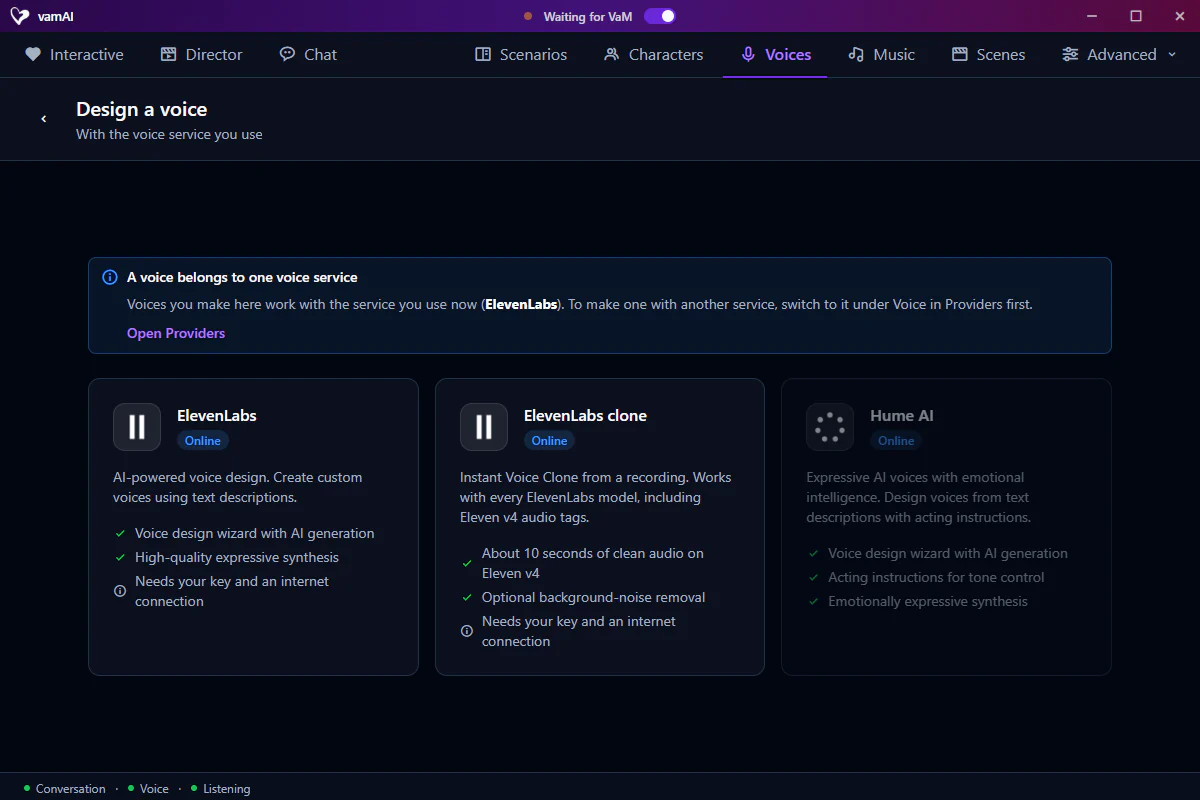
If your active service can't make voices, the screen says so and suggests switching to ElevenLabs or Hume AI.
Pick how you want to make the voice:
Describe the voice in words. ElevenLabs generates a few samples, and you keep your favourite.
Step 1: Design voice
- Enter a Voice name. The voice in your ElevenLabs account gets the same name.
- Write a Voice description. Longer descriptions work better; aim for 250 characters or more.
- Set the Guidance scale. Higher follows your description more closely; lower gives ElevenLabs more creative freedom.
- Choose the Sample text the samples will speak: Default (a built-in line), Auto-generate (ElevenLabs writes a line from your description) or Custom (your own words, under Your own sample text).
- Click Make voice samples.
- Under Choose her voice, play each sample and click the one you like best.
- Click Create profile. vamAI creates the voice in your ElevenLabs account and saves it to your library.
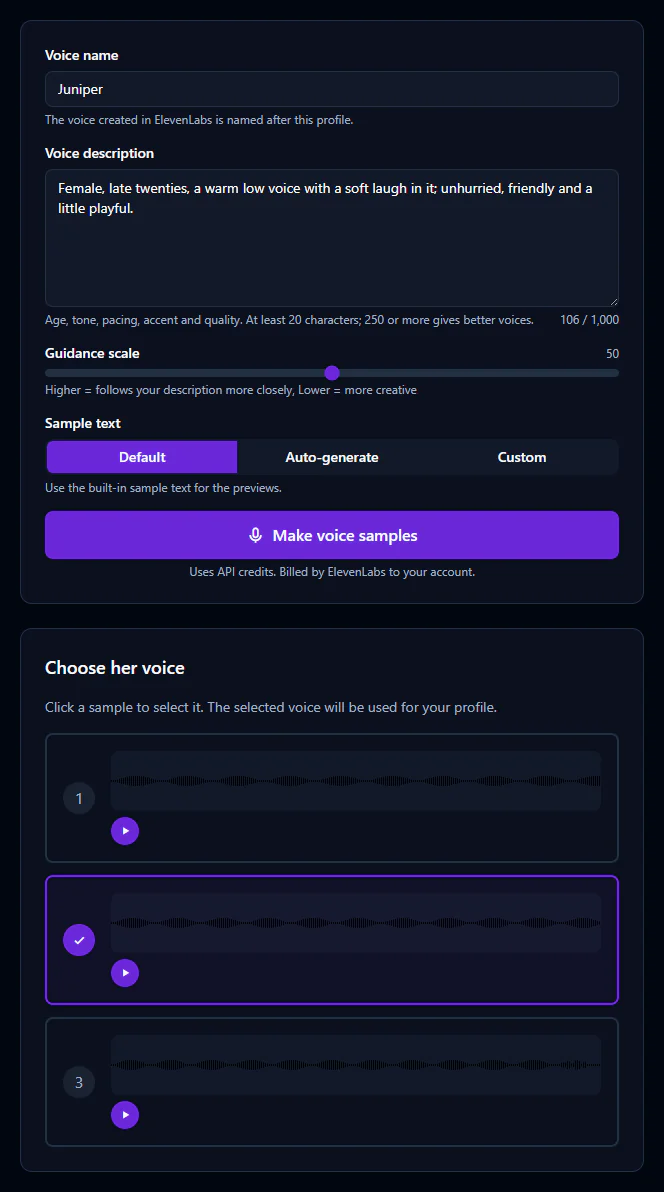
A great description goes beyond "a woman's voice." Mention age, accent, pitch, texture, pace and personality. For example: "A woman in her late twenties with a warm, slightly raspy voice. Soft-spoken and intimate, with a gentle Southern lilt. She speaks slowly and deliberately, with a playful, teasing edge."
Step 2: Filler audio (optional)
Next, the wizard offers to make filler audio: the ambient sounds your character makes during pauses. Click Skip & finish to skip it, or make it here with Make filler audio and click Finish. You can always make it later from the voice's Filler audio tab.
Filler audio means about 50 long clips, and ElevenLabs bills your account for all of them. It needs an ElevenLabs model that understands audio tags (Eleven v3 or v4). See Filler audio.
Clone a voice from a recording. ElevenLabs makes an Instant Voice Clone in your account, and it works with every ElevenLabs model, including audio tags on Eleven v4.
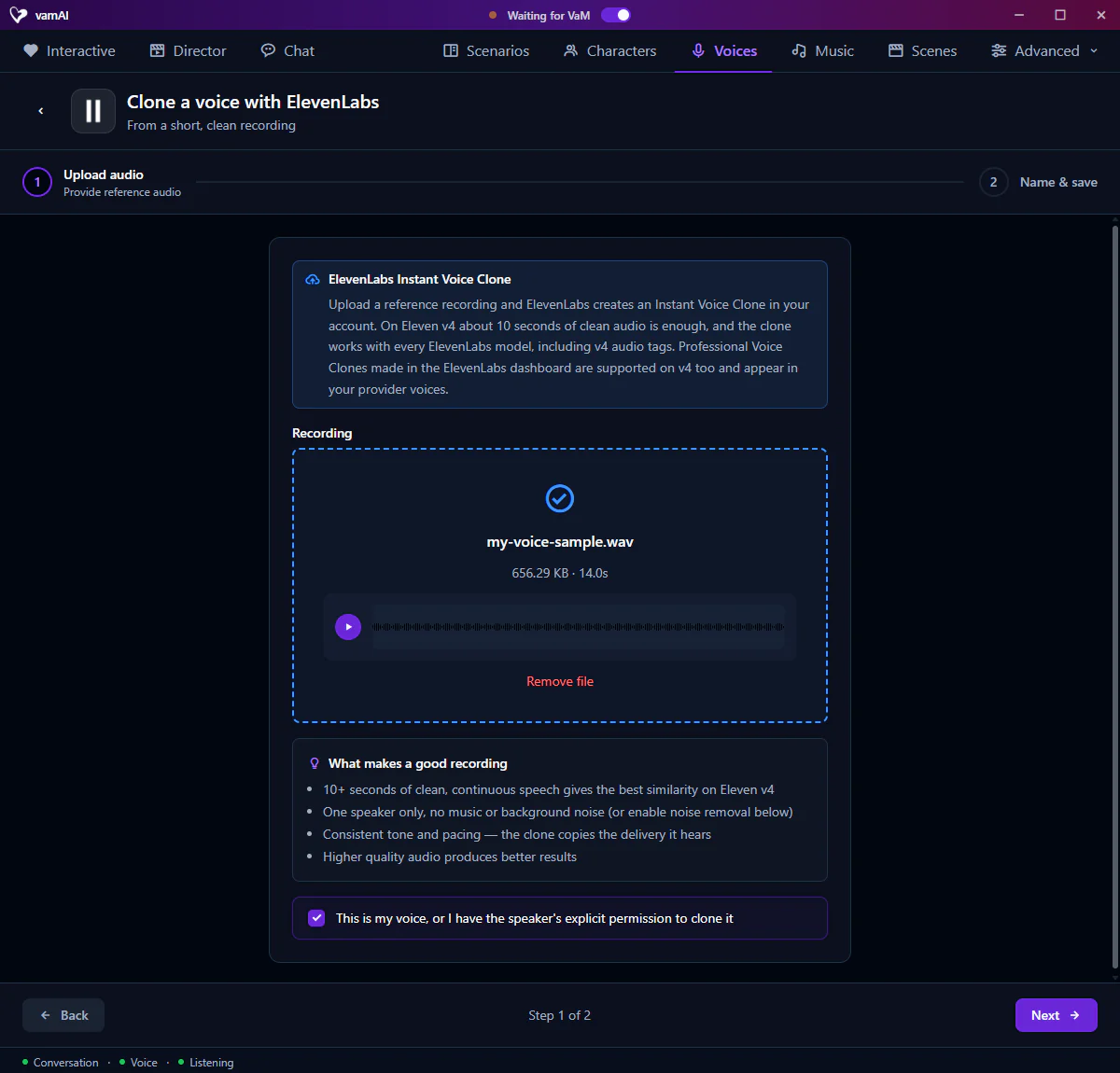
Step 1: Upload audio
- Drop a recording into Recording (Click to upload or drag and drop), or click to choose one. WAV, MP3, M4A and OGG work, up to 10 MB.
- Use 10 seconds or more of clean speech. vamAI warns you if the clip is shorter, but doesn't stop you.
- Tick the consent box to confirm it's your own voice, or that the speaker has given you permission to clone it. You can't continue without it.
Step 2: Name & save
- Enter a Voice name. It names the voice in your library and in your ElevenLabs account.
- Add a Description if you like.
- Turn on Remove background noise only for noisy recordings. It can soften a clean one.
- Click Create voice.
A clone is only as good as its recording. Use one person speaking, with no music, noise or echo, in a steady, natural tone. The clone copies the delivery it hears.
Already made a Professional Voice Clone on the ElevenLabs website? It shows up under Ready-made voices in your library, ready to use.
Hume makes an expressive voice from a description, and you can give it acting direction.
Step 1: Design voice
- Write a Voice description.
- Check the Preview text: the line the samples will speak.
- Click Make voice samples.
- Under Choose a voice sample, listen and pick the one you like. To hear a different line, edit the text and click Make new samples.
Step 2: Name & save
- Enter a Voice name and, if you like, a Description.
- Add an Acting instruction if you want: a note on how the voice should deliver its lines, such as "speak with quiet tenderness" or "sound confident and flirty."
- Click Create voice.
The acting instruction is how you steer a Hume voice's delivery.
The ways compared
| Way | Service | How the voice is made | Filler audio |
|---|---|---|---|
| Design | ElevenLabs | From your written description; you pick a sample | Yes, on Eleven v3 or v4 |
| Clone | ElevenLabs | From a recording of 10 seconds or more | Yes, on Eleven v3 or v4 |
| Design | Hume | From your description, plus an optional acting instruction | No |
Tips
Not sure which to use? ElevenLabs design gives the richest, most dynamic voices. ElevenLabs clone gives you a specific voice you have the right to use. Hume gives an expressive voice you can direct.
After making a voice, open it from the Voices tab and try it in the Voice tester before you give it to a character. See Voice library.
Next steps
Once your voice is ready, give it to a character, or see everything you can do with voices in the Voice library. Trouble making a voice? See Troubleshooting.