
Setting up your scene
Teach vamAI what's in your Virt‑A‑Mate scene, so your character can act in it.
A Scene tells vamAI what's inside one of your Virt‑A‑Mate (VaM) scenes: who's in it, and the named actions your character can use there, such as a pose, a gesture or dimming the lights. Each action is wired to real controls in VaM, so when she decides to use it, it happens.
Scenes are used in both modes. In Interactive Mode, vamAI finds the Scene linked to the VaM scene you have loaded and lets her use its actions as you talk. In Director Mode, each scenario names the Scene it plays in.
Her scene actions are in Max and in the 7-day free trial. In Pro she talks, and your scene changes only when you change it. See Your membership.
You can only create or edit a Scene while the vamAI plugin is connected, and each Scene is locked to the VaM scene it was made for. Load that scene in VaM before you start. If you haven't connected yet, see Connecting Virt‑A‑Mate.
Your scenes
Open the Scenes tab. The header shows the name of the VaM scene you have loaded (the title bar reads VaM connected).
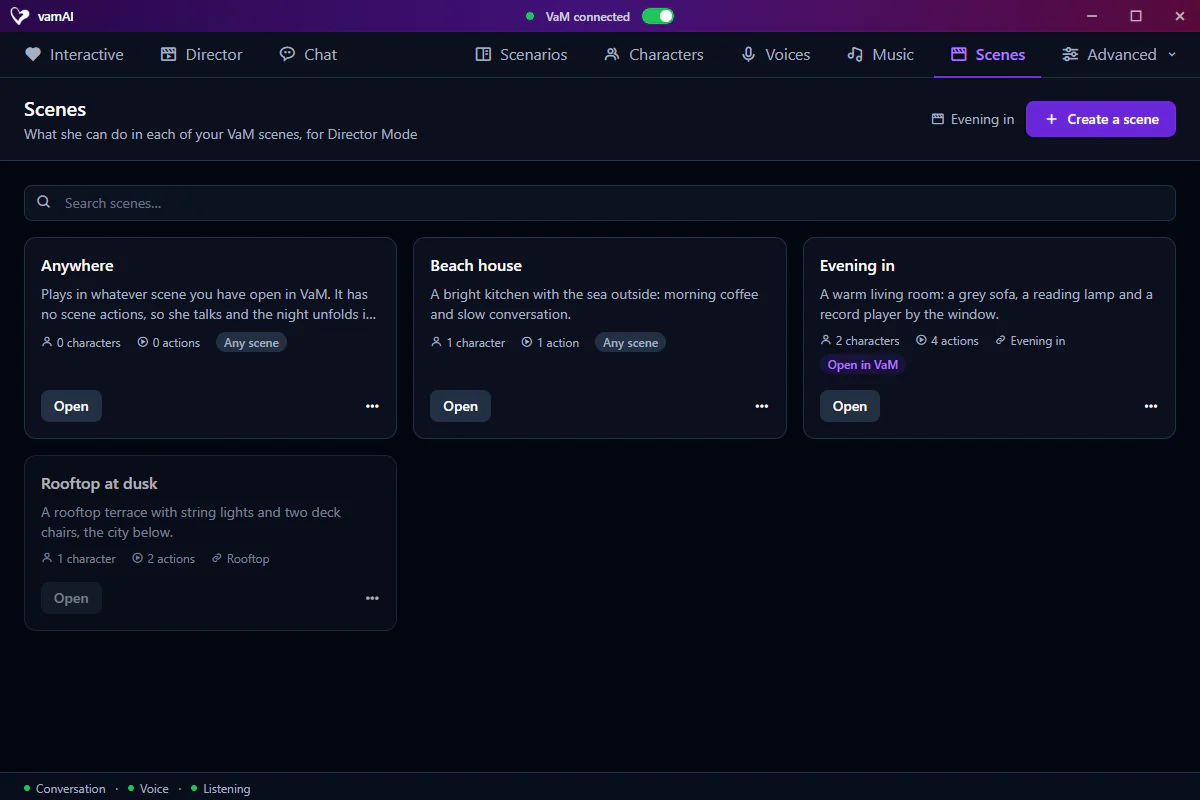
Each Scene appears as a card with its name, description, number of characters and actions, and the VaM scene it's linked to. Two badges can appear:
- Open in VaM: this Scene is linked to the VaM scene you have loaded right now.
- Any scene: a Scene that isn't linked to a VaM scene yet, so its scenarios play in whatever scene you have loaded. The Anywhere Scene that comes with vamAI is one. It's linked to your current VaM scene the first time you edit it.
A Scene made for a different VaM scene is greyed out until you load its VaM scene. If you'd rather use it with the scene you have open, choose Tie to the scene open in VaM from its ⋯ menu. The same menu holds Duplicate and Delete.
With the plugin disconnected, you'll see "Connect VaM to create or edit scenes: a scene is edited while it is the one open in VaM." Create a scene stays unavailable until VaM connects.
To begin, click Create a scene.
The Scene editor
The editor has three panels side by side.
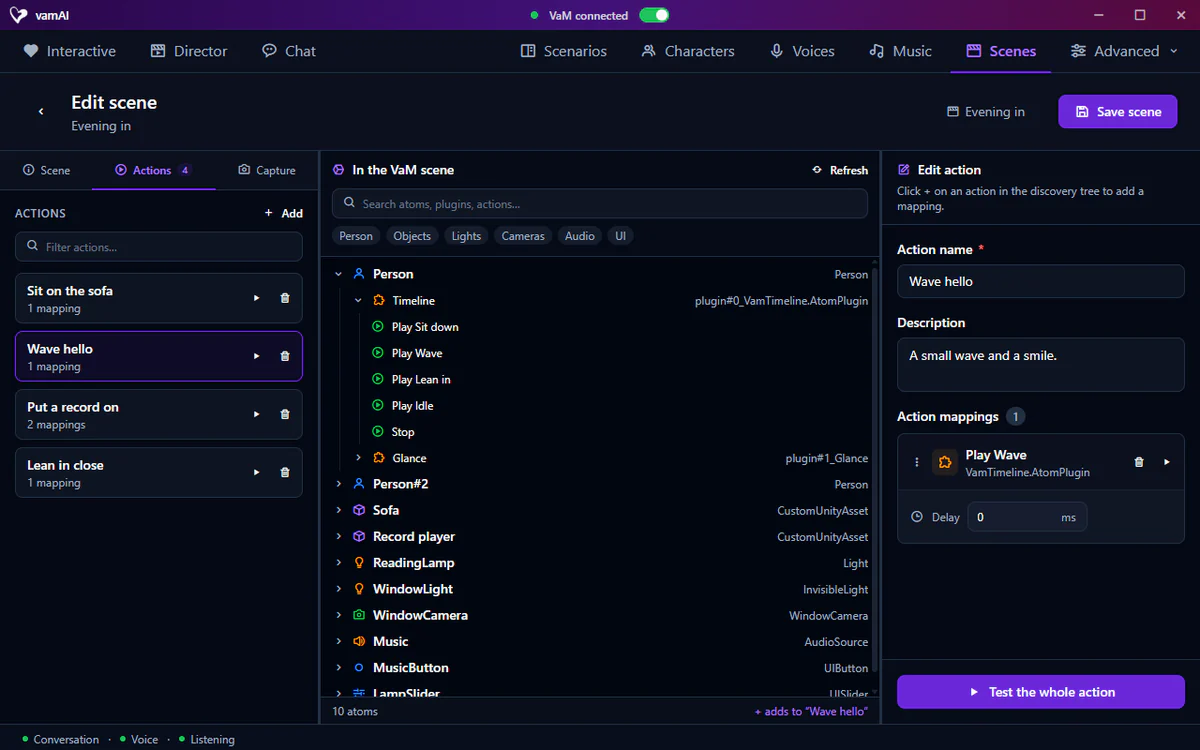
Left: Scene, Actions and Capture
The left panel has three tabs.
- Scene: the Scene's Name, Version, Author, Description and the VaM scene it's linked to, plus Characters. Use Add to list each character, pick their atom and describe them.
- Actions: the named actions she can use, such as wave or dim the lights. Create one, then wire it up in the other panels. Drag to reorder; each has buttons to test it or delete it.
- Capture: a snapshot of the scene through the camera your character uses. See Capture below.
Middle: In the VaM scene
In the VaM scene is a live tree of everything vamAI found in your loaded scene: each atom, the plugins on it, and their actions and triggers. ("Atom" is VaM's word for anything in a scene: a person, a light, a prop.)
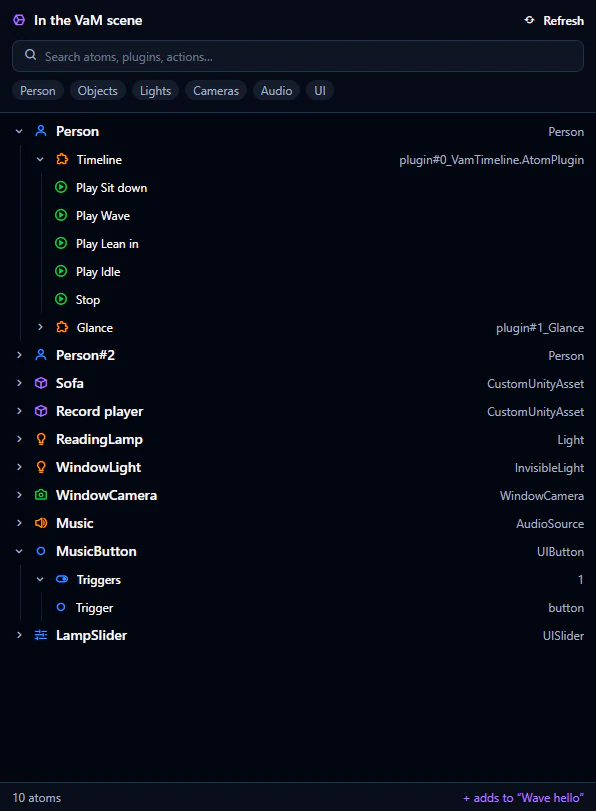
To find things quickly, type in Search atoms, plugins, actions…, or use the filters along the top: Person, Objects, Lights, Cameras, Audio and UI. If you add something in VaM after opening the editor, click Refresh.
Hover over an action or trigger for its buttons:
- The play button runs it in VaM straight away, so you can see what it does.
- The + button adds it to the action you're editing on the right. It shows once you've chosen an action there.
Right: Edit action
Here a named action is connected to what actually happens in VaM.
- Action name and Description. A clear description helps the AI use the action at the right moment.
- The Action mappings: the VaM actions and triggers this action runs, in order. Drag to reorder them, test one, or remove it. Test the whole action runs them all in VaM.
- For each mapping, a Delay before it runs, and either an AI-controlled value (she decides how much, for example how far to turn) or a Fixed value you set.
Use the play button freely while you build. It's the quickest way to check a trigger does what you expect before you wire it into an action.
When everything looks right, click Save scene. An Unsaved label beside the title reminds you when there are changes to save.
Capture: previewing a snapshot
The Capture tab shows what your character sees when a session starts. Click Capture for a snapshot of your scene: four views around the characters, stitched into one picture.
The camera itself is set in Advanced → Settings → Body and scene → Reading the scene, under Capture camera (it shows once Read the scene at the start is on): its distance, height and field of view. Frame it so the characters are clearly in view: too far and they're small, too close and they're cut off. Then come back and click Capture to check.
If VaM changes while you edit
If the plugin disconnects, or VaM has another scene open, you can keep editing and save; finding atoms and testing actions come back when its VaM scene is open again. If you load a different VaM scene while you have unsaved changes, vamAI asks what to do: Save and close or Discard changes. Save often so you never lose work.
Tips
Build your Scene before you write a scenario. Scenarios are built on Scenes, so the Scene has to exist first.
One well-built Scene serves Interactive Mode and any number of scenarios. Give each action a clear name and description, and she'll know when to use it.
Next steps
- Write a story for your Scene: Building scenarios
- Let her change her look, her outfit or the place: Looks, outfits and places
- Perform it: Director Mode
- Connection problems? See Troubleshooting.