
Voice library
Browse, preview and manage every voice your characters can speak with.
The Voices page is where your characters' voices live. Here you browse the voices your voice service already offers, look after the voices you've designed yourself, hear how a voice performs a line, and add filler audio. Think of it as your characters' voice wardrobe.
Voices come from the voice service you chose: ElevenLabs, Deepgram or Hume. Set one up first under Advanced → Providers. See Choosing your AI services.
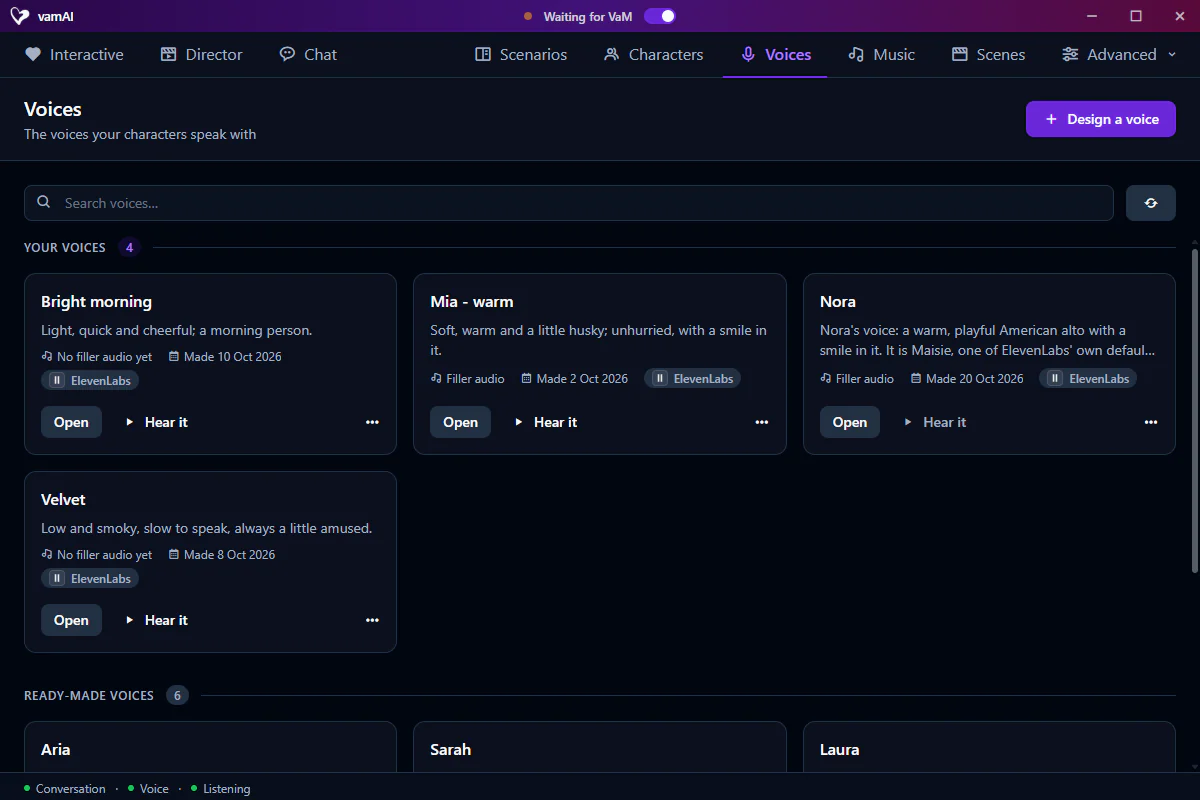
Opening the Voices tab
Click the Voices tab. Type in the Search voices… box to filter by name, description or service.
The library has two groups:
| Section | What it is | Can you change it? |
|---|---|---|
| Your voices | Voices you designed or cloned in vamAI | Yes: preview, test, add filler audio, duplicate, delete |
| Ready-made voices | Voices your active voice service already has | No: use them as they are |
Ready-made voices are whatever your voice service offers: the voices in your ElevenLabs account, Deepgram's ready-made voices, or Hume's ready-made voices plus your own Hume voices.
No voices of your own yet? Click Design a voice to make one. See Designing custom voices.
To give a character a voice, pick it in the Her voice field of her profile on the Characters tab. Both your voices and the ready-made ones are listed there. See Creating characters.
What's on a voice card
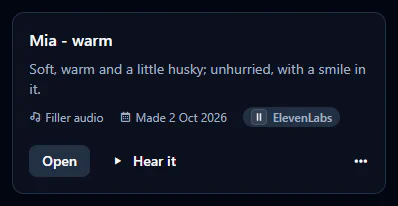
- Name: the voice's name.
- Service badge: which voice service it belongs to (for example ElevenLabs or Hume AI). A voice made for another service also reads Not your current voice service.
- Description: a short summary of the voice.
- Filler audio / No filler audio yet: whether filler audio has been made for this voice. Your voices only.
- Made: when the voice was created.
- Open: opens the voice's detail view. Your voices only.
- Hear it: plays the voice's sample.
- ⋯ menu: Duplicate makes a copy on the same voice, to try another description; Delete removes the voice. Your voices only.
Nora, the voice that comes with vamAI, is one of ElevenLabs' own voices. It's listed under Your voices so it can carry her filler audio, and deleting it here never deletes anything from your ElevenLabs account. See Meet Nora.
Deleting a custom voice is permanent. A voice one of your characters speaks with can't be deleted until you give her another voice, or No voice (she then talks to you in text).
Understanding filler audio
Filler audio is the ambient sound a character makes during natural pauses: soft breathing, little sighs, quiet moans. It keeps silence from feeling lifeless. Once things turn intimate (her excitement above zero, something being done to her), vamAI plays these short clips whenever she isn't speaking a line, so she still feels present.
Filler audio can only be made with ElevenLabs, on a voice model that understands audio tags (Eleven v3 or v4). Making it creates about 50 long clips, and ElevenLabs bills your account for all of them. It's optional: you can add it later, or never.
Once a voice has filler, it plays in your sessions by itself (Enable filler audio in Advanced → Settings → Sounds is on by default). Nora, the voice that comes with vamAI, already has hers. The full story is in Filler audio.
The voice detail view
Click Open on one of your voices. It has four tabs.
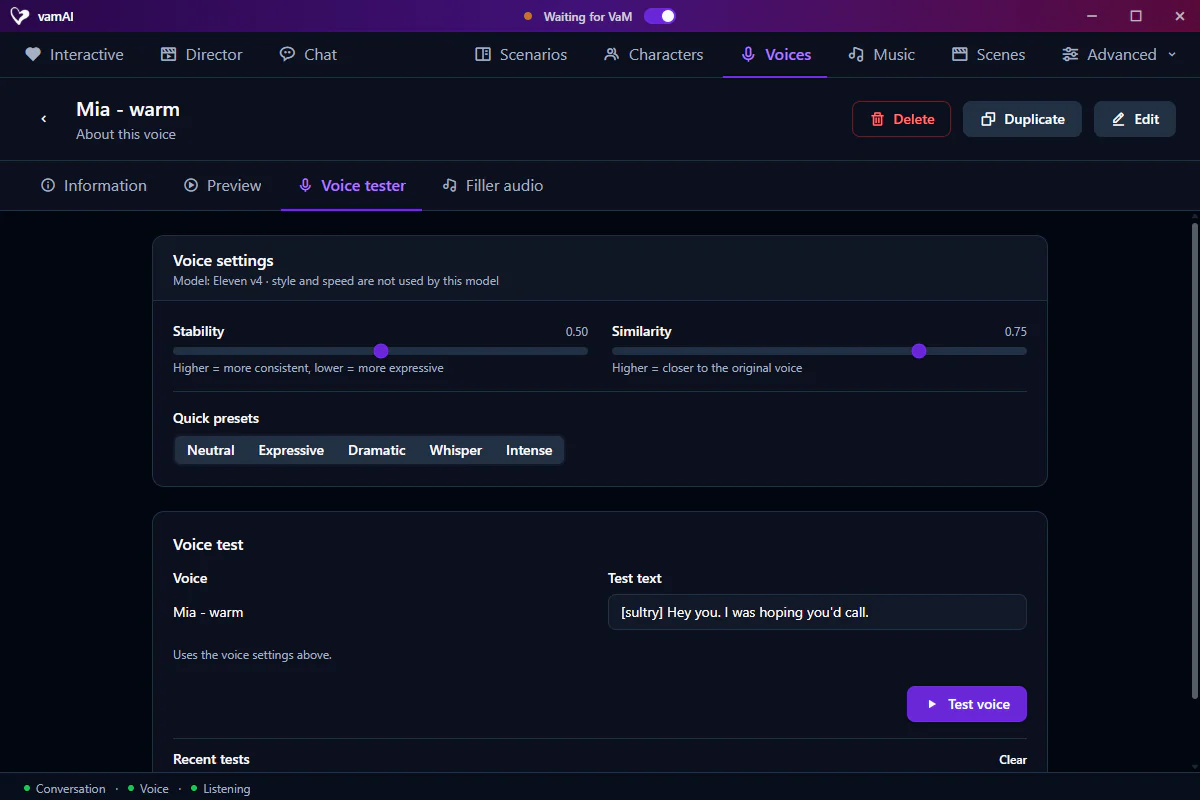
Information
The voice's description, the service it was Made for, which characters use it (Used by) and when it was Created. Hume voices also show their Acting instruction, and Technical details holds the voice ID. Edit at the top changes its name and description (and a Hume voice's acting instruction).
Preview
Play the voice's sample. To hear it say something else, change the Preview text and click New preview.
Voice tester
A sandbox for hearing how the voice performs a line before you use it in a session.
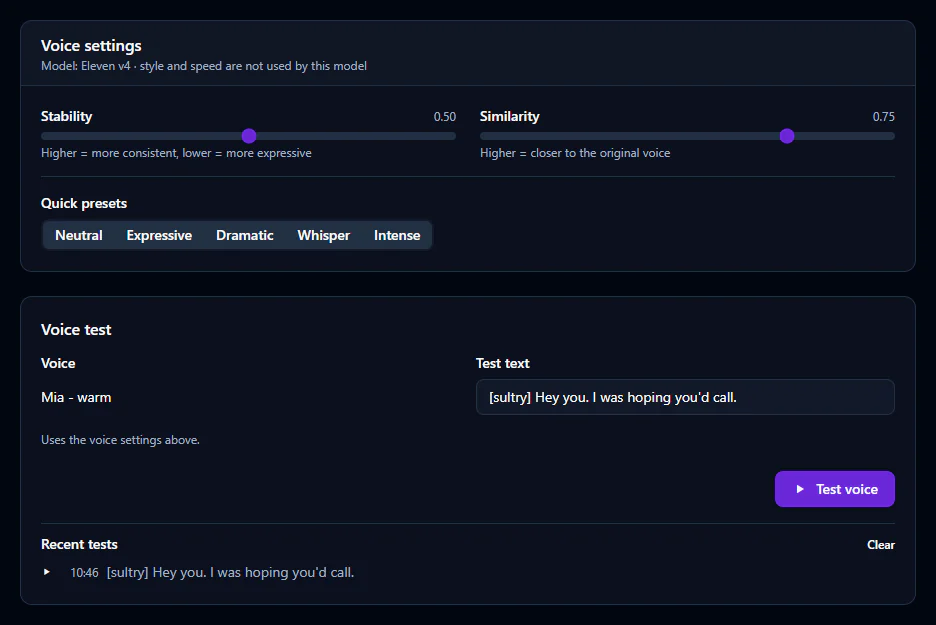
- Type a line in Test text.
- On ElevenLabs models that support them (Eleven v3 and v4), add audio tags in square brackets, like
[sultry],[whispers]or[chuckles], to direct the delivery. - Shape the delivery with the sliders under Voice settings:
| Slider | What it controls |
|---|---|
| Stability | How steady the voice is. Lower is more varied and emotional. |
| Similarity | How closely it sticks to the original voice. |
| Speed | How fast it speaks. |
| Style | How much drama and flair it adds. |
- Or click one of the Quick presets: Neutral, Expressive, Dramatic, Whisper or Intense.
- Click Test voice to hear the result. Your tests stay listed under Recent tests so you can compare them.
On ElevenLabs' newest models (Eleven v3 and v4) only Stability and Similarity apply, and Stability has three settings: Creative, Natural and Robust. The tester shows only the sliders your model uses.
Each test is a real request to your voice service, so it's billed like any other speech.
Filler audio
Make, or remake, this voice's filler audio. If the voice already has filler, you can listen to every clip here. See Filler audio.
Making filler audio creates many long clips at once, and ElevenLabs bills your account for each one.
Voices belong to their service
Every custom voice belongs to the voice service that made it.
If you switch your active voice service under Advanced → Providers, voices made with the old one stop working until you switch back. If a character depends on a particular voice, keep its service active, or design a new voice with the new service.
Tips
Before you give a voice to a character, try it in the Voice tester with a line she'd actually say. It's the quickest way to know whether it fits.
Next steps
Ready to make a voice of your own? See Designing custom voices. If something sounds off, see Troubleshooting.