
Building scenarios
Write the stories that Director Mode brings to life.
A scenario is the story you hand to Director Mode: who's in the scene, what each of them wants, and the situation as it opens. The AI uses it to plan and perform the scene on its own.
Every scenario is built on a Scene: vamAI's description of a VaM scene and the actions the AI can use in it. vamAI comes with one, Anywhere, which plays in any VaM scene; build your own to give her actions. See Setting up your scene.
Your scenarios
Open the Scenarios tab. Each scenario is a card with its name, its description and the Scene it's set in. Search scenarios… at the top finds one quickly, and the menu beside it orders them By name or By scene.
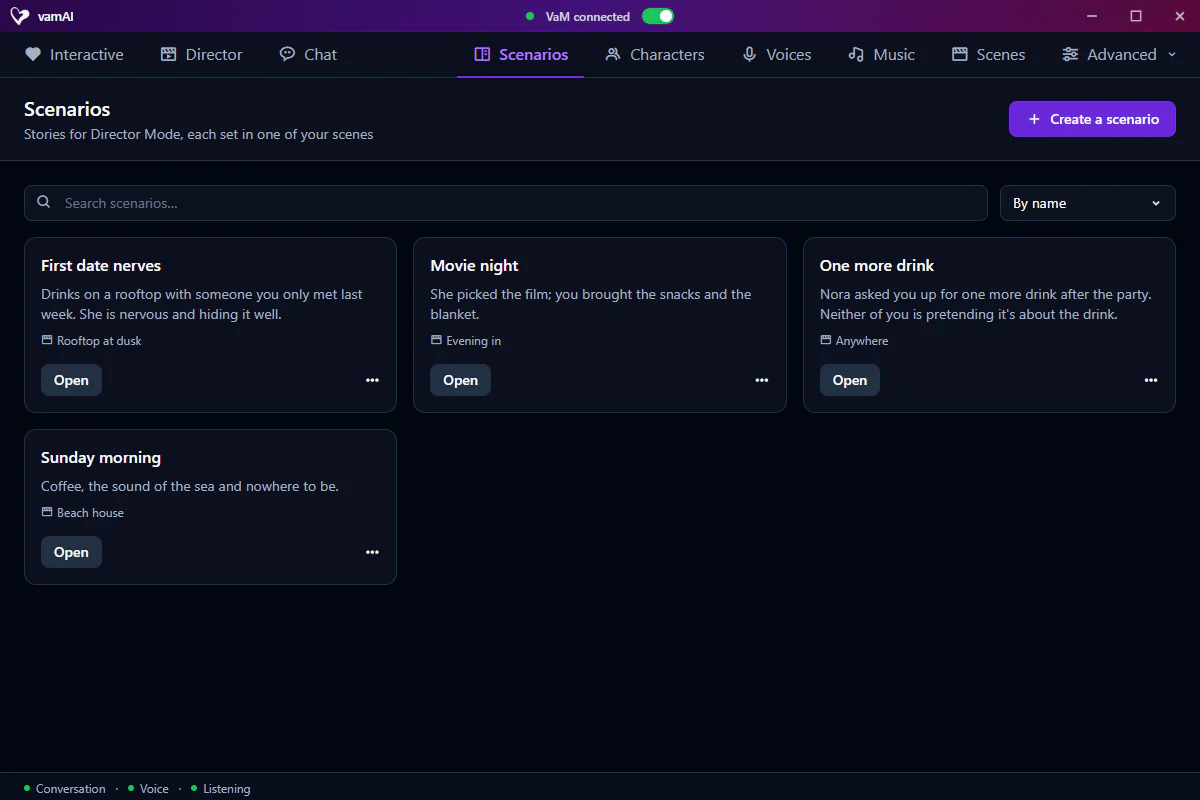
Each card has:
| Button | What it does |
|---|---|
| Open | Opens the scenario to read or change it. |
| Duplicate (in the ⋯ menu) | Makes a copy, so you can try a variation. |
| Delete (in the ⋯ menu) | Removes the scenario, after asking you to confirm. Its Scene stays. This can't be undone. |
A card marked Scene missing is set in a Scene that was deleted or renamed. Open it and choose another Scene.
vamAI comes with one to try: One more drink, with Nora, set in the Anywhere Scene so it plays in whatever VaM scene you have loaded. Anywhere has no actions, so she talks and the night unfolds in words.
To write a new one, click Create a scenario.
Creating a scenario
Create a scenario walks you through three steps: Scene and name, Characters and Review.
Step 1: Scene and name
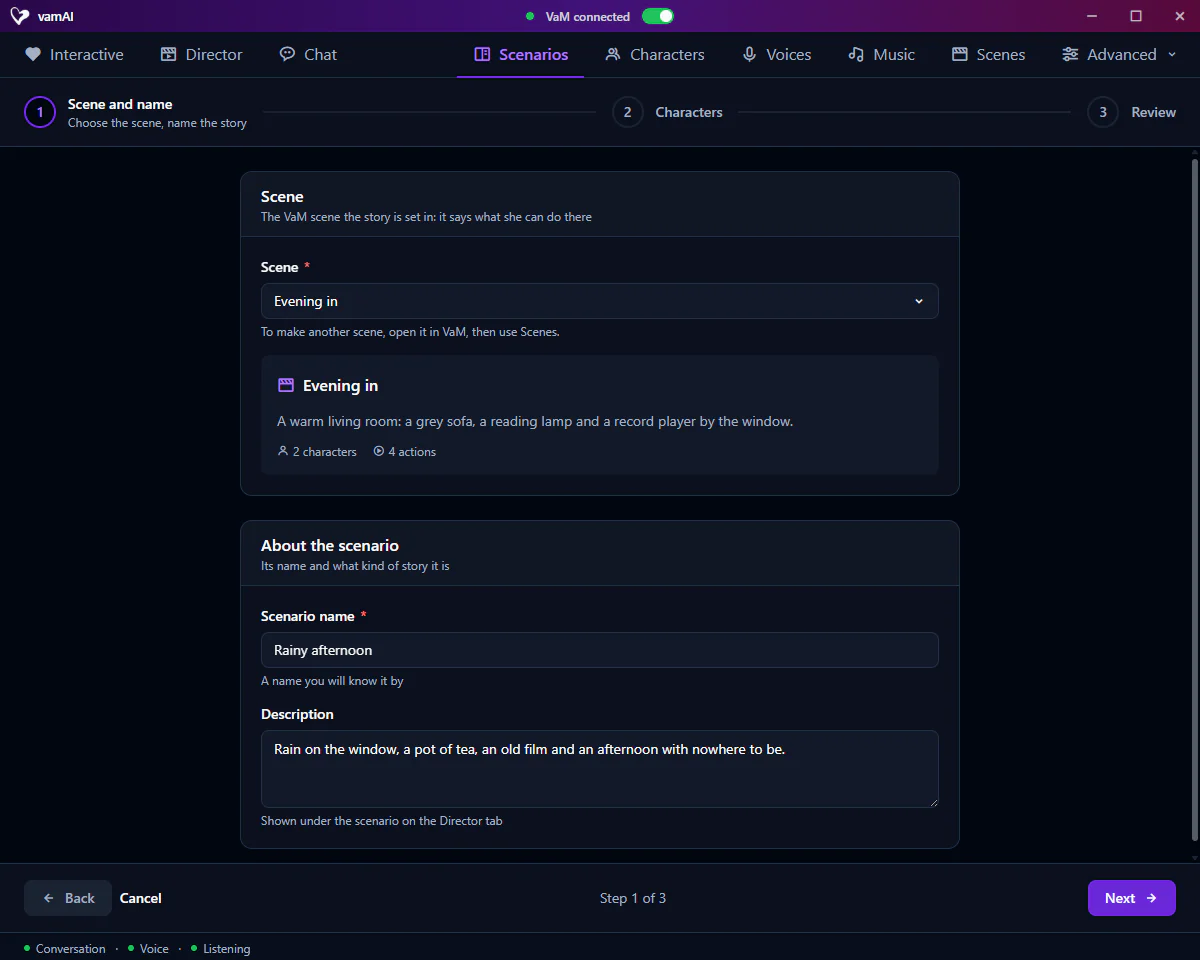
- Under Scene, choose the Scene this scenario takes place in.
- Give it a Scenario name.
- Add a short Description: what kind of scenario it is, and its overall mood.
If you see No scenes yet, create a Scene first in the Scenes tab (Open Scenes takes you there), then come back.
Step 2: Characters
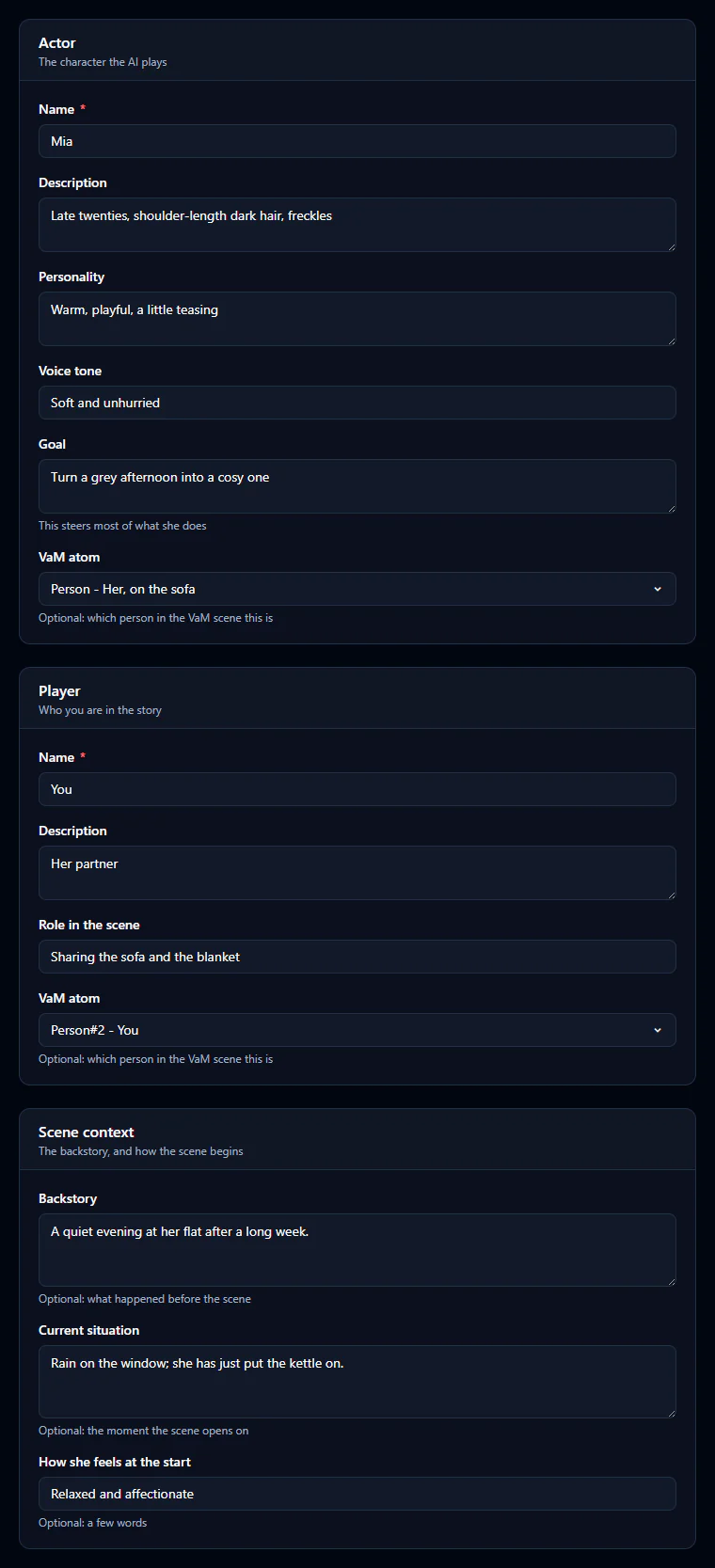
Actor: the character the AI plays.
- Name and Description
- Personality: how she thinks and behaves
- Voice tone: how she should sound
- Goal: what she wants from the scene. This steers most of the AI's choices.
- VaM atom (optional): which character in your Scene she is
Player: you.
- Name and Description
- Role in the scene: who you are in the story
- VaM atom (optional): which character in your Scene stands for you
Scene context: the stage, all optional.
- Backstory: how they know each other, and what led here
- Current situation: what's happening as the scene begins
- How she feels at the start
A clear Goal ("win them over", "calm them down", "seduce them") and a vivid Current situation do most of the work. Vague inputs make for a vague scene.
Step 3: Review
You'll see everything you entered on one page. To have the AI polish it, type a note in Direction (optional) on the Improve with AI card, such as "Add more tension", and click Enhance with AI. The improved text goes into the earlier steps, so go back to read it. Nothing is saved until you create the scenario.
When you're happy, click Create the scenario. vamAI saves it to your library.
You need a Scene, a Scenario name, and names for the Actor and the Player before you can create it.
Editing a scenario
Open shows the scenario's details: About the scenario, Scene, Characters and Scene context. Click Edit at the top to change them, then Save changes. The Improve with AI card at the bottom works just like the one in the creator.
Editing a scenario doesn't change its Scene. To change what the AI can do in VaM, edit the Scene.
Performing a scenario
A scenario has no on/off switch. You choose it when you start Director:
- On the Director tab, pick it under Scenario, then click Start scenario.
- Or, in the vamAI panel in VaM, choose it under Scenario and press Start scenario.
The two stay in step: choose a scenario in VaM, and the Director tab follows. You can't switch scenarios while Director is running.
See Director Mode for what happens next.
Tips
Build one Scene and reuse it for several scenarios: different stories, same set. It's the quickest way to get more from your setup work.
Next steps
- Bring a scenario to life: Director Mode
- Change what the AI can do in the scene: Setting up your scene
- Stuck? See Troubleshooting.