
Creating characters
Create and manage the AI personalities you talk to.
A character is the personality you talk to in vamAI: who she is, how she speaks, the voice she uses and the memories she builds with you. You need at least one before you can start a conversation in Interactive Mode.
Characters live on the Characters tab. A new install comes with one, Nora: warm, playful and a little bit trouble, with her own voice, ready to talk the moment your keys and VaM are set up. Change her, or delete her if you'd rather make your own (without a membership she's your one saved character). See Meet Nora.
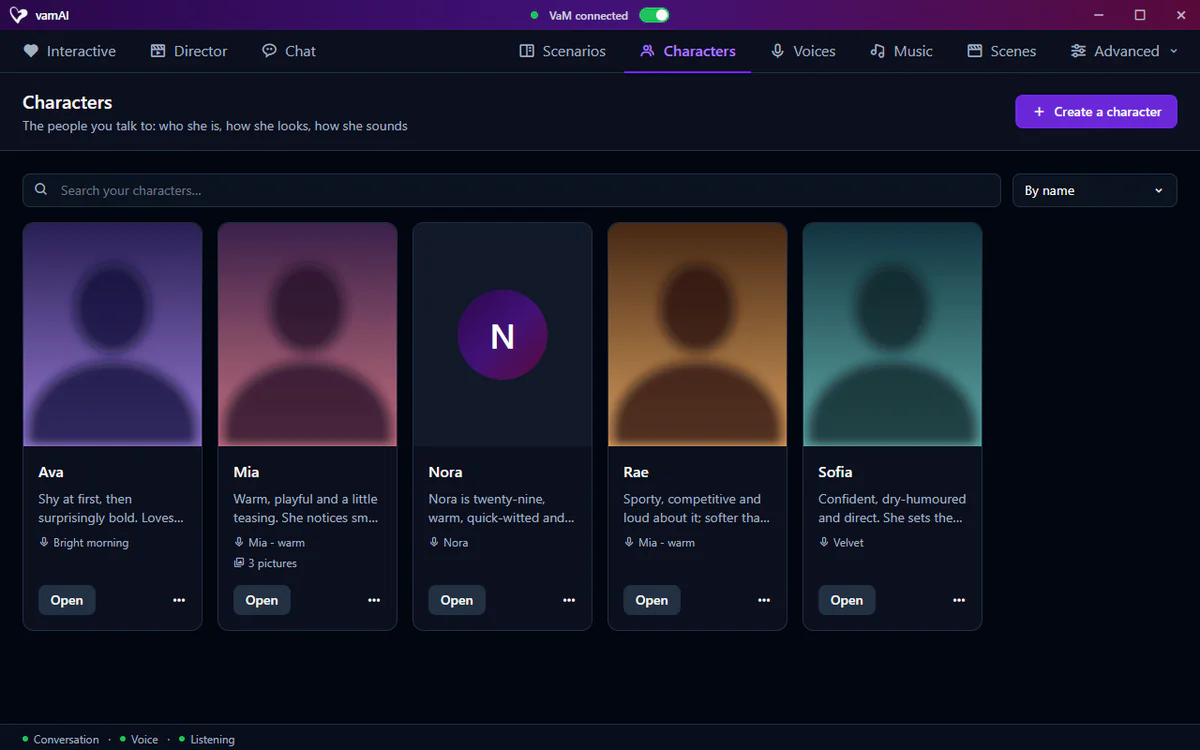
Your characters
Each character is a card with her headshot, her name, the start of her personality and, if she has one, the name of her voice and how many pictures her gallery holds. Click Open on a card to open her profile, or click Create a character to make a new one.
Search your characters… finds her by name, personality, look or voice, and the menu beside it orders the cards By name, Newest first or Last changed.
How many characters you can keep depends on your membership: up to 3 in Pro, as many as you like in Max and in the free trial. Without a membership, vamAI keeps one. If you reach the limit, the app tells you; remove a character or check your plan in Settings → Account. A character you already have is never removed. Nora counts as one of them. See Your membership.
Creating a character
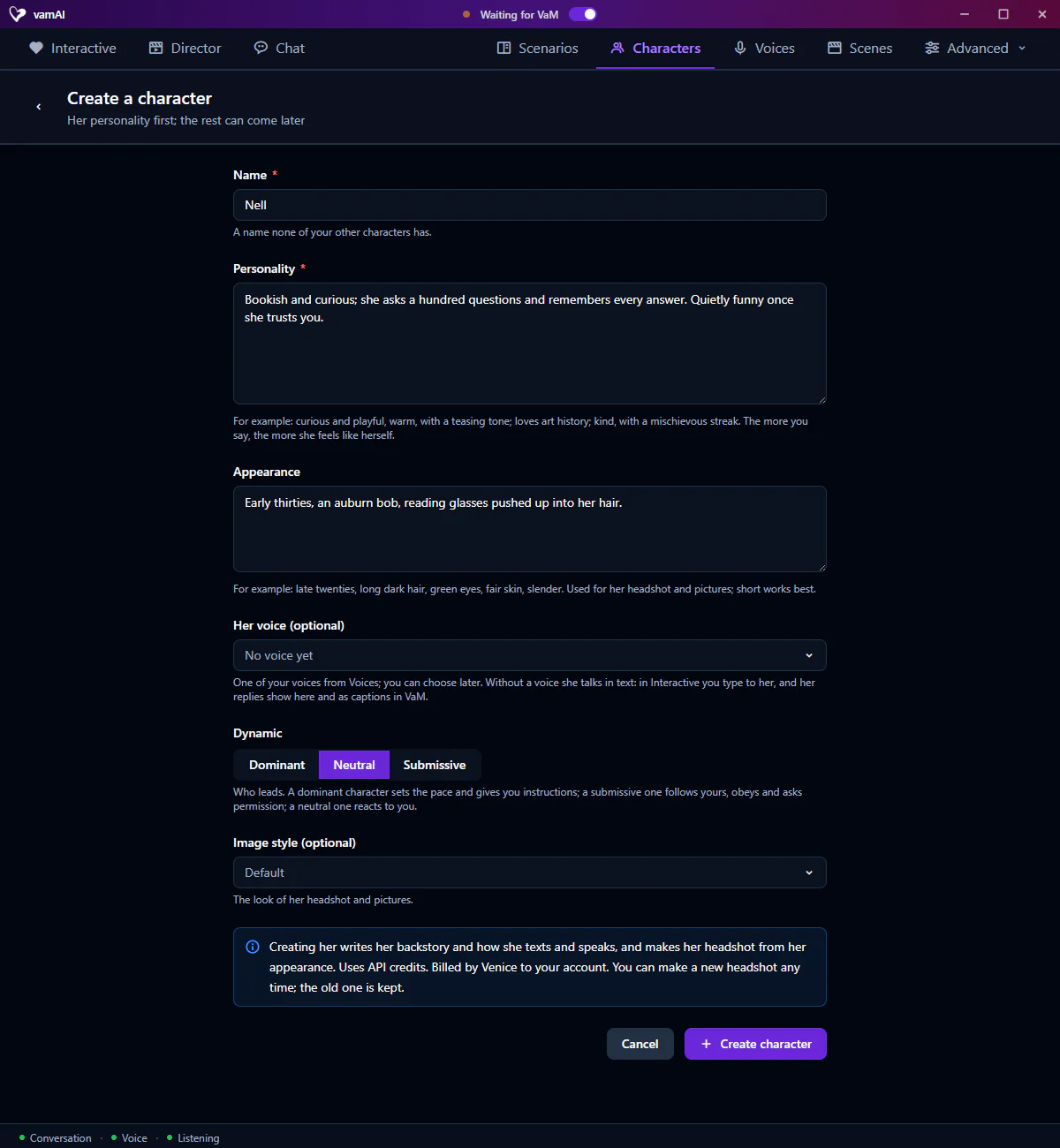
Click Create a character and fill in the form:
| Field | Required? | What it does |
|---|---|---|
| Name | Yes | What you'll call her, for example "Luna". |
| Personality | Yes | Who she is, how she acts, what she cares about and how she talks. Write as much as you like. |
| Appearance | Optional | A short physical description. It's used for her headshot and gallery pictures. |
| Her voice (optional) | Optional | A voice from your Voice library, so she always sounds like herself. With No voice, she talks in text: in Interactive you type to her, and her replies show in VaM as captions. |
| Dynamic | Optional | Who leads: Dominant, Neutral or Submissive. A dominant character sets the pace, a submissive one follows yours, a neutral one reacts to you. Only Interactive Mode uses it. Neutral is the default. |
| Image style (optional) | Optional | One art style for all her pictures. |
Click Create character. vamAI then does two things for you:
- It writes her backstory, texting style and speaking style from the personality you gave her, using your conversation service.
- It opens her profile and makes her headshot from her appearance.
Headshots and gallery pictures come from Venice, with your own Venice key. They're optional. Without a Venice key your character is still created, just without a picture; add the key under Advanced → Providers, then use Make her headshot on her profile any time. Venice bills your account for each picture. See Adding your API keys.
A good Personality makes a great character. A few pointers:
- Be specific. "Warm, sarcastic, fiercely loyal, secretly shy" beats "nice."
- Describe how she talks, not only who she is: pace, slang, favourite phrases.
- Give her opinions, quirks, likes and dislikes. Contradictions make characters feel human.
- It doesn't have to be perfect. You can edit everything later.
Her profile
Open a character to see her profile. It has three tabs: Details, Gallery and Memory.
Details
Here you see everything about her. Click Edit at the top to change her name, voice, dynamic, image style, personality or appearance, then Save changes.
The How she talks card holds three things that shape how she comes across:
- Backstory: her history and background.
- Texting style: how she writes in text chat.
- Speaking style: how she sounds when she talks out loud.
vamAI writes these when you create her. Click Write beside one to rewrite it, or Write all to rewrite all three from her current personality. Nothing is saved until you click Save changes, and Undo puts back what was there. You can also edit them by hand. If you change her personality later, vamAI offers to write them again so they still match.
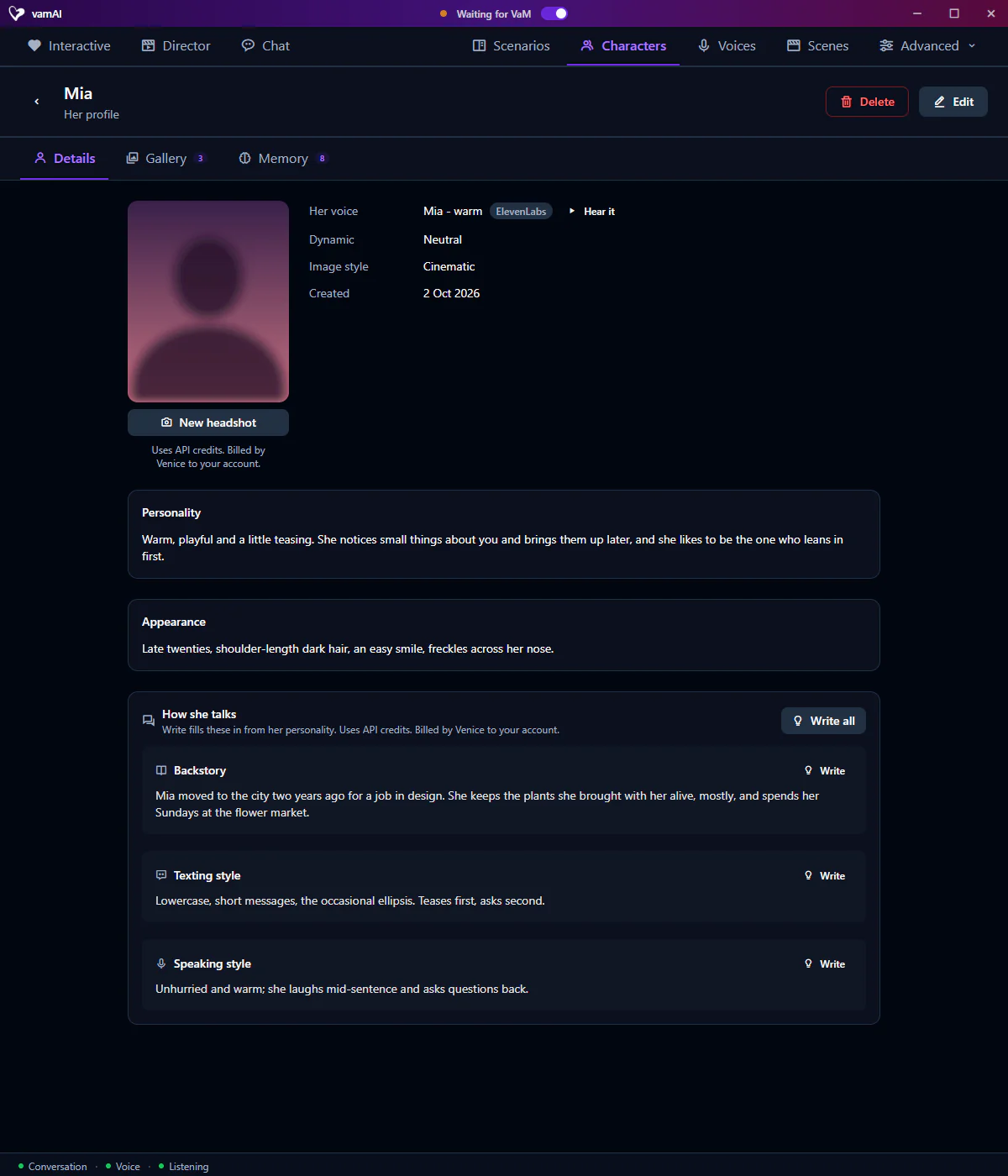
Want a different headshot? Click New headshot under it. vamAI makes a new one from her current appearance, and the old one moves to her gallery.
Gallery
The Gallery tab is a collection of pictures of your character. Describe the picture you want under Make a picture and click Make it; it joins the gallery. The NSFW toggle decides whether generated pictures may include adult content. Click any picture to see it full size.
Hover over a picture for two buttons: one makes it her headshot (Use as her headshot), and the bin removes it (Remove this picture). vamAI asks before removing one, because making it again means paying Venice for a new one.
Memory
The Memory tab shows what she has learned about you, herself and the world, and lets you add, correct or remove it. vamAI fills it in by itself as you talk. The full guide is Character memory.
Deleting a character
Open her profile and click Delete at the top, or choose Delete from the menu (⋯) on her card.
Deleting a character is permanent. It removes everything about her, including her gallery pictures and her whole memory. There is no undo.
Next steps
- Give her a distinctive voice: Voice library
- See how she remembers you: Character memory
- Start talking: Interactive Mode