
Director Mode
Hand the AI a scenario and watch it plan and perform the scene, round by round.
In Director Mode, you don't lead the conversation. You choose a scenario, press start, and the AI plans and performs the scene on its own: what your character says, what happens in the scene, and the pacing between. You sit back and watch it unfold.
You'll find it on the Director tab, next to Interactive.
Director Mode is in both memberships, Pro and Max, and in the 7-day free trial. In Pro she plays the scene out in her words and her voice; the actions it triggers in your VaM scene are in Max. Settings → Account shows what yours includes. See Your membership.
How it differs from Interactive Mode
Interactive Mode is a conversation you lead. Director Mode is a performance you watch.
| Interactive Mode | Director Mode | |
|---|---|---|
| Who leads | You. You talk, she answers. | The AI, following a scenario. |
| Your voice | The whole point. | Not used. Director doesn't listen. |
| Interrupting | Talk over her at any time. | The plan plays through. Stop scenario ends it. |
| Best for | Real conversation. | Hands-off, story-driven scenes. |
What you need
- VaM connected. The title bar reads VaM connected. See Connecting Virt‑A‑Mate.
- A voice for her lines. See Voice library.
- A scenario to perform. vamAI comes with one, One more drink, with Nora, which plays in any VaM scene. See Building scenarios to write your own. If you have none, the scenario list in Director reads No scenarios yet, with a Create a scenario button that opens the scenario creator.
Starting a scene
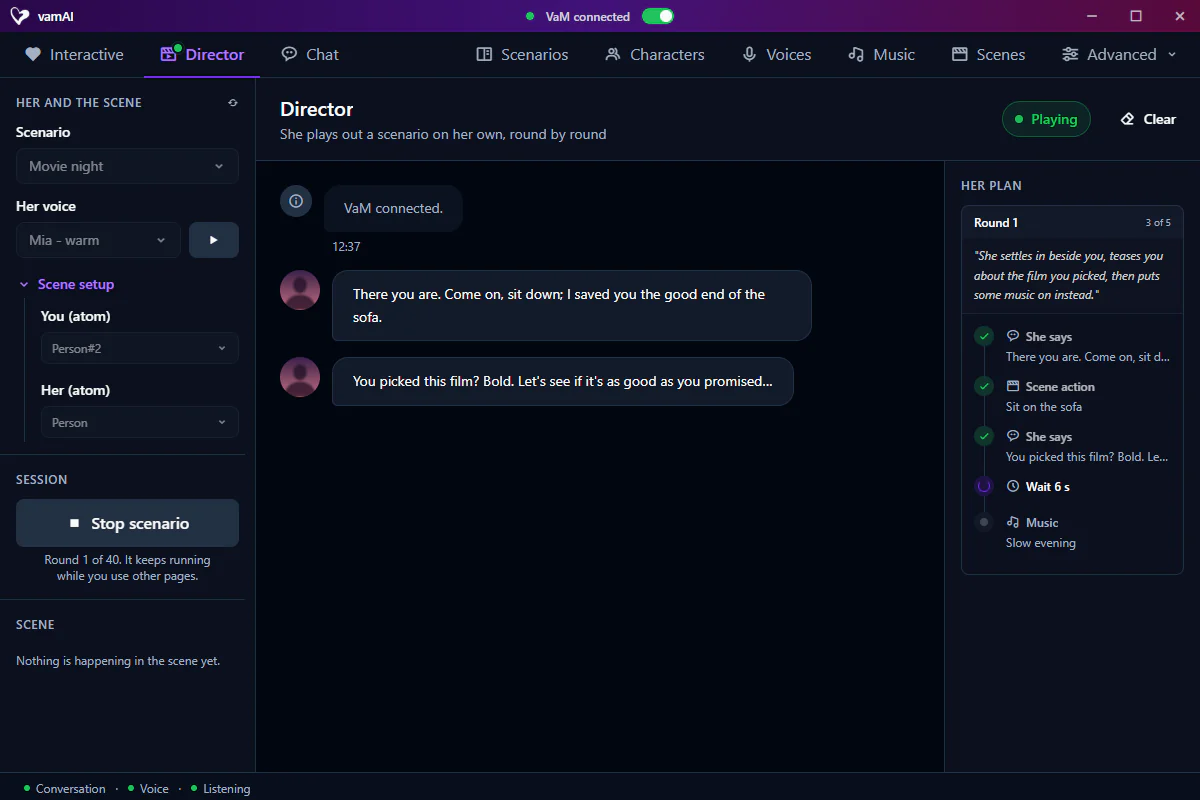
The panel on the left is laid out like Interactive's, and holds everything you need.
- Under Her and the scene, choose the Scenario to perform. Its description shows underneath.
- Under Her voice, choose the voice she'll speak with. The play button beside it lets you hear it.
- Click Start scenario.
You can also start from inside VaM: in the vamAI panel on the plugin, choose a Scenario under Director and press Start scenario.
Scene setup, under her voice, says who is who in your VaM scene: Her (atom) and You (atom). It's the same choice as on the Interactive tab and in the vamAI panel in VaM (Her and You, under Who's who), and it opens by itself when there's a choice to make. If her voice comes from the wrong person, check it first. The small refresh button at the top of the section looks for the scene's people again.
If Start scenario is greyed out, the line under it tells you what's missing: "Waiting for VaM. The vamAI plugin connects by itself.", "Create a scenario first.", "Choose a scenario first.", "Choose her voice first." or "Stop the current session first."
While it starts, the Session section shows each step (Step 3 of 4, and which of her first lines is being recorded), with Cancel if you change your mind. Once it's running, the badge at the top right reads Playing, and the line under Stop scenario says which round it's on, such as Round 3 of 40. Her lines appear in the middle of the page as she speaks them, and the actions play out in VaM.
The line under Start scenario says who bills each round (her lines and her voice). A scene left running stops by itself, so it doesn't keep billing you: after 40 rounds, or after 20 minutes with no sign of you. Moving your view in VaM, or clicking anywhere in vamAI, counts as a sign. When it stops, a note under the button says why (or that the scenario played to its end); Start scenario carries on with a fresh session. Clear, at the top of the page, empties her lines (the newest 500 are kept).
Watching the plan: Her plan
The panel on the right, Her plan, shows what the AI intends to do next, so the scene never feels like a black box.
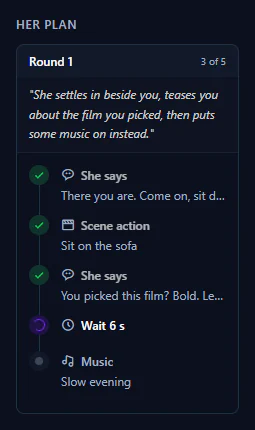
Director works in rounds. Each round, the AI plans a short stretch of the scene, and while it plays, the next round is already being prepared, so there are no long pauses.
Each round card shows:
- Round 1, Round 2 and so on, with how many steps are done, such as 2 of 5.
- A one-line summary of what the AI means to do this round.
- The steps, in order:
| Step | What happens |
|---|---|
| She says | Your character speaks a line. |
| Scene action | One of your Scene's actions runs in VaM. |
| Wait | A deliberate pause, for pacing, such as Wait 5s. |
| Music | She puts on one of your music tracks, named beside it. Music fades out stops it. |
| Scenario ends | The AI has decided the story is over. |
Beside each step, a tick means done, a cross means it didn't happen, a spinner means happening now, an amber dot means it's waiting on VaM, and a plain dot means still to come. Finished rounds fold up into a single line. Planning this round… in a round card means the AI is still writing it, and while the next round catches up, the badge at the top right reads Preparing the next round. If the scene ends part way through a round, its card says The session ended before the rest of this round.: the steps left unmarked never happened.
The Scene section on the left shows what's happening in your scene while Director runs, the same way Interactive does: her Excitement, and who is doing what to whom, with its intensity. Until something happens it reads Nothing is happening in the scene yet.
When the AI decides the story has reached its end, Director stops on its own.
While it's running
- Her and the scene is locked, as on the Interactive tab. To change the scenario, her voice or who is who, stop the scenario, make your change and start again.
- Changing an AI service needs a restart. If you change a service in Providers while Director runs, a banner says your settings changed and asks you to restart the scenario. Stop and start Director to use them.
- Leaving the tab doesn't end the scene. It keeps running while you use other pages, and the title bar shows it, with a Stop button.
- Between her lines she isn't silent once things turn intimate, if her voice has filler audio and it's turned on: soft breathing and quiet moans play through the waits. See Filler audio.
- She can put music on, as in Interactive, from the tracks you've made. See Background music.
- Other creators' plugins aren't used. Plugin integrations work in Interactive sessions only.
To end the scene yourself, click Stop scenario, or press Stop scenario in the vamAI panel in VaM.
If something isn't working
- Start scenario stays greyed out: read the line under the button. It names the missing piece.
- Her voice comes from the wrong person: check Her (atom) under Scene setup.
- Nothing happens in the scene: make sure the scenario's Scene has actions mapped, and that the VaM scene it was built for is the one you have loaded. Anywhere, the Scene that One more drink is set in, has no actions: she can't move anyone, so she talks, and what happens in VaM is up to you. She follows it: her lines react to what is being done to her.
- An error message appeared: see Error messages explained.
More help is in Troubleshooting.
Next steps
- Write the stories Director performs: Building scenarios
- Prefer a conversation you lead? Try Interactive Mode.