
Appearance & themes
Choose a colour theme for the vamAI app.
The Appearance section sets the look of the vamAI app. Pick whatever is easiest on your eyes; you can change it any time.
Tip
Open the Advanced menu → Settings → Appearance.
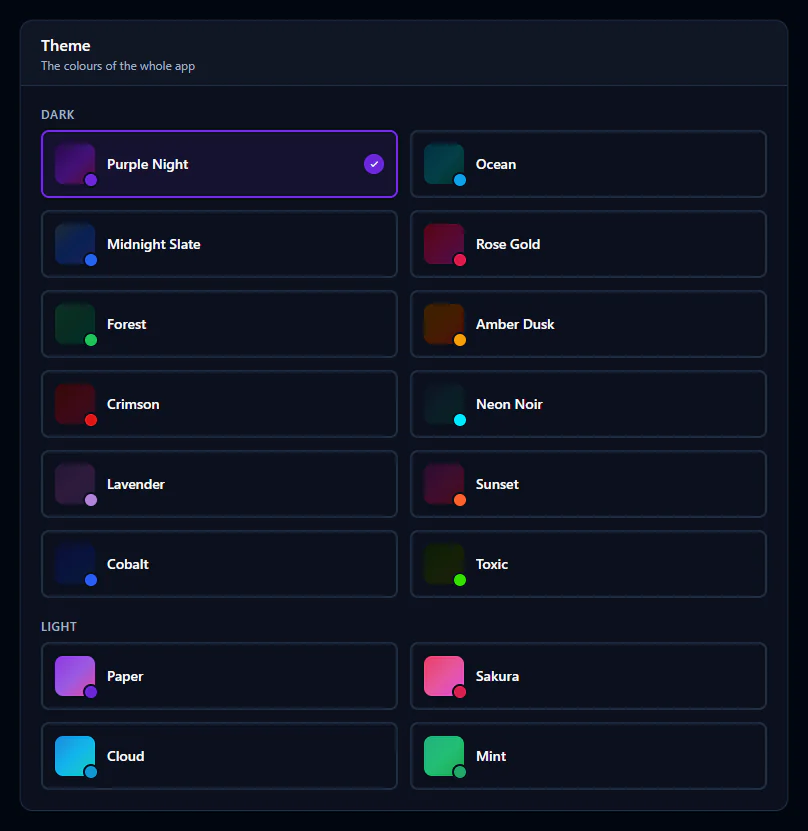
Choosing a theme
Themes are grouped into Dark and Light. Each card shows a small colour preview and the theme's name.
- Open Settings → Appearance.
- Click a theme card. It applies straight away across the whole app.
Your choice is saved, so vamAI opens in the same theme next time.
Tip
A dark theme is gentler in a dim room and keeps the focus on your conversation. Switch to a light one if you're somewhere bright.
The theme only changes the vamAI window. It doesn't affect Virt‑A‑Mate or anything in your scene.
Next steps
Fine-tune what you hear in Audio & volume, or go back to the Settings overview.