
Audio & volume
Set how loud your character is and how quickly she speaks.
The Audio section of Settings controls what you hear: how loud each voice is and how fast speech plays. These are the settings people reach for most.
Open the Advanced menu → Settings → Audio. Changes save on their own and apply to the next thing your character says. There's no need to restart a session.
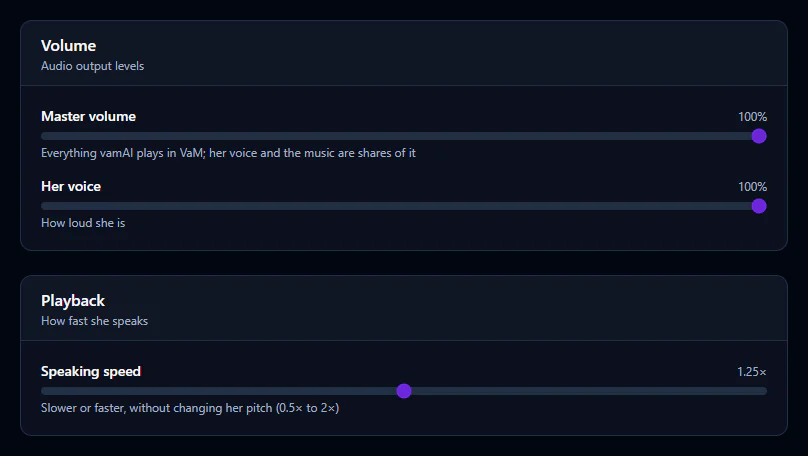
Volume
Her voice plays inside Virt‑A‑Mate, from the character herself. The two sliders set how loud vamAI asks VaM to play it, and they multiply together: Master is the main dial, and her voice sits underneath it. So does the music: its own Music volume is in Settings → Sounds (see Background music).
| Slider | What it does | Default |
|---|---|---|
| Master volume | Everything vamAI sends to VaM. Turn this down to make the whole experience quieter at once. | 100% |
| Her voice | Your character's voice. Raise this first if she's hard to hear. | 100% |
Still too quiet at 100%? These sliders can only make her quieter than the original recording. Check your Windows volume and VaM's own audio settings too.
Speaking speed
Speaking speed, in the Playback card, sets how fast speech plays, from 0.5× (slow and deliberate) to 2× (brisk). The default is 1.25×, a little quicker than natural, which most people find lively without sounding rushed.
vamAI time-stretches the audio, so faster speech keeps its normal pitch. She talks more quickly but still sounds like herself.
- Sounds rushed or clipped? Move it back towards 1×, her natural pace.
- Conversation feels slow? Try a little above 1.25×.
Speaking speed only changes how fast the words come out. It doesn't change how much she says. For shorter or longer replies, use How much she says in Settings → Conversation (see Live conversations).
Your microphone
The same section also holds your Microphone and the Voice send interval. Both are covered in Microphone & speech.
If you hear nothing
Volume is rarely the cause when there's no sound at all. Her voice can only play when:
- the VaM plugin is connected (the title bar reads VaM connected),
- a voice service is set up and has a working key, and
- the character she speaks through is chosen as Her (atom) under Scene setup on the Interactive tab.
If her voice starts and then cuts out, another VaM plugin may be playing sounds on her at the same time. See Troubleshooting for that and other fixes.
Next steps
Set up the other half of the conversation in Microphone & speech, so vamAI hears you clearly. The soft sounds between her lines are in Filler audio.