
Connection settings
How vamAI and the VaM plugin find each other, and the few settings that control it.
vamAI and Virt‑A‑Mate talk through the small vamAI plugin you add to your scene. The connection is automatic: open vamAI, load a scene with the plugin, and they find each other. Most people never need this page.
vamAI and Virt‑A‑Mate must run on the same PC. The plugin always looks for vamAI on its own computer, so there is no way to point it at another machine.
The status in the title bar
The centre of the title bar always shows the connection, with a switch beside it.
| What it says | What it means |
|---|---|
| Waiting for VaM (yellow, pulsing) | vamAI is ready. It connects as soon as the plugin is running in your scene. |
| VaM connected (green) | You're connected. While a session runs and you're on another page, a chip beside it shows the session (Live with her name, or Live: and the scenario Director Mode is running), with a Stop button. |
| VaM connection off (grey) | The switch is off. The plugin can't connect until you turn it back on. |
The switch is on every time vamAI starts. Turning it off only lasts until you turn it back on, or until the next time you open vamAI.

If it stays on Waiting for VaM, see Connecting Virt‑A‑Mate for the plugin steps, and Troubleshooting if it still won't connect.
Settings → VaM connection
Open the Advanced menu → Settings → VaM connection. There is nothing to set up: vamAI listens on this PC only, because the plugin only ever looks for it there. The one setting, the Port, sits under Advanced in the Connection card.
| Setting | What it does | Default |
|---|---|---|
| Port (under Advanced) | The number vamAI and the plugin both use to find each other. It must match the port in the VaM plugin. | 12605 |
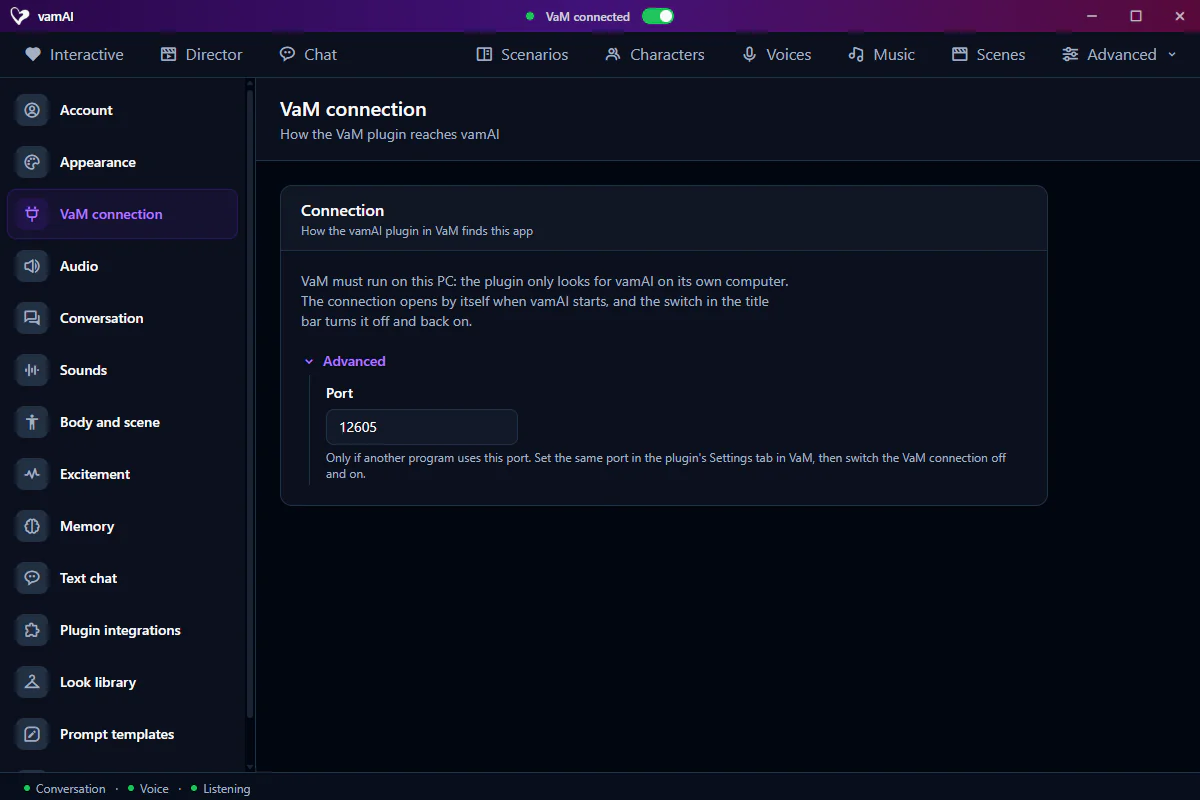
Changing the port
You only need a different port if another program already uses 12605. vamAI tells you when that happens: it says the port is already in use, usually because another copy of vamAI is open. Close the other copy first; that's the most common cause.
If you do need a new port, change it on both sides:
- In vamAI, open Settings → VaM connection, open Advanced and enter the new Port.
- In VaM, open the vamAI plugin's panel, go to its Settings tab, enter the same number under Port, and press Apply.
- Back in vamAI, turn the switch in the title bar off and on again (or restart vamAI). The new port is used from then on.
If the two numbers don't match, the plugin can't find vamAI and the title bar stays on Waiting for VaM.
Next steps
Once you're connected, set up the services that power your character in Choosing your AI services, then start talking in Live conversations.