
Microphone & speech
Pick your microphone, test it, and tune when vamAI decides you've finished speaking.
These settings control how vamAI listens during a live conversation: which microphone it uses, and how it decides you've finished your turn. Get them right and the conversation flows. Get them wrong and she either cuts you off or keeps you waiting.
Voice conversations need a listening service: Deepgram (online, with your key) or Whisper (on your PC). If you haven't chosen one yet, see Choosing your AI services.
Choose your microphone
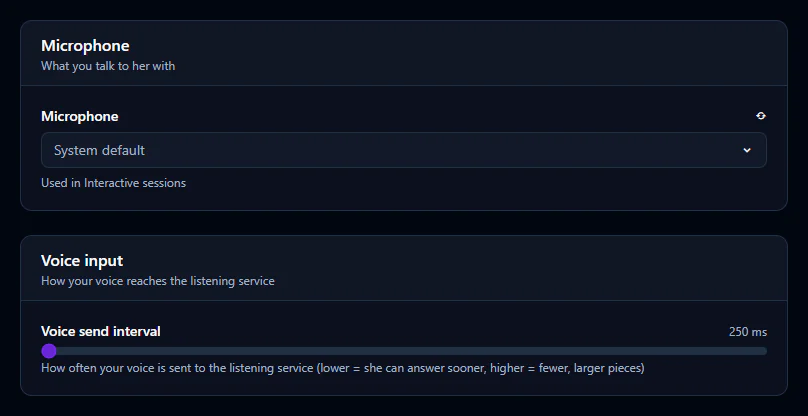
Open the Advanced menu → Settings → Audio, and pick your device in the Microphone list, in the Microphone card. System default uses whatever Windows has set as its default microphone.
You can change the microphone in two other places as well:
- On the Interactive tab, in the Microphone box, for the session you're about to start.
- In VaM, from the Device list under Microphone on the vamAI plugin's panel. vamAI remembers a choice made there.
Test it
The quickest test is the Transcription tester. Press Start recording, say a sentence, and your words should appear.
- In Providers, open your listening service (Deepgram, or Whisper once it's running). The tester is at the bottom of its page.
- Or go to Settings → Help & diagnostics → Run setup again and use the microphone step.
During a session, the badge at the top of the Interactive tab reads Listening when vamAI is ready to hear you, and the large microphone button at the bottom mutes and unmutes you.
No words appearing? Check the right microphone is selected and isn't muted in Windows. If Windows is blocking it, open Windows Settings → Privacy & security → Microphone and turn on access for desktop apps.
Language
Set the language you'll speak on your listening service's page in Providers:
- Deepgram has a Language list.
- Whisper has a Language list too, or leave it on Auto-detect.
When your turn ends
vamAI has to decide when you've finished talking before it sends your words to the character. Three settings shape that, in this order of importance.
1. Your listening service's pause length
Your listening service is the main judge. When it hears you stop, your turn ends. To change how long a pause it waits for, open Providers, choose your listening service, and switch on Advanced at the top right. Then adjust Endpointing.
- Raise it if she keeps answering while you're only pausing for thought.
- Lower it if she takes too long to answer.
2. Merge follow-up speech
Sometimes you pause, your turn is sent, and then you carry on talking. With Merge follow-up speech on (the default), vamAI drops the reply it was preparing and sends everything you said as one turn.
You'll find it in Settings → Conversation → Follow-up speech. The Follow-up window (2 seconds by default) is how long after your turn was sent that carrying on still counts.
3. Pause that ends your turn
Pause that ends your turn (Settings → Conversation → When you have finished speaking) is a back-up. It ends your turn after this much silence if the listening service hasn't already done so. You rarely need to change it.
Voice send interval
In Settings → Audio → Voice input, the Voice send interval sets how often your voice is sent to the listening service, from 250 to 3,000 milliseconds (250 by default). Lower lets her answer sooner; higher sends fewer, larger pieces. Leave it alone unless support suggests a change.
Prefer to type?
Enable text input (Settings → Conversation → Text input) adds a message box to the Interactive tab, so you can type instead of speaking, or as well as. It's on by default.
Troubleshooting
| What you notice | Try this |
|---|---|
| vamAI never hears you | Check the Microphone choice, Windows' microphone privacy setting, and that no other app is holding the microphone. |
| She answers before you've finished | Raise Endpointing on your listening service, and keep Merge follow-up speech on. |
| Long wait before she answers | Lower Endpointing a little. |
| Your words come out wrong | Set the Language on your listening service instead of auto-detect. |
If an error appears, Error messages explained says what each one means. More fixes are in Troubleshooting.
Next steps
Set how loud and fast she sounds in Audio & volume, or start a conversation in Live conversations.