
Settings overview
A short tour of Settings and the Advanced menu, and where each guide lives.
Settings is where you shape vamAI around you: how loud she is, how she hears you, what she remembers, how the app looks. The defaults are chosen to work well, so change only what you want and leave the rest.
Finding your way around
Everything that isn't part of a conversation lives in the Advanced menu, at the right end of the tab bar.
| In the Advanced menu | What it's for |
|---|---|
| Providers | The AI services vamAI uses, your keys for them, and anything that runs on your PC. See Choosing your AI services. |
| Settings | Everything on this page. |
| Preferences | Tell your characters about you: what to call you, your pronouns, what you enjoy and your hard limits. You can keep several profiles and choose which one is used. Changes apply from your next session. |
| About | Your vamAI version, links to these guides and to support, the license agreement and the open-source licenses. |
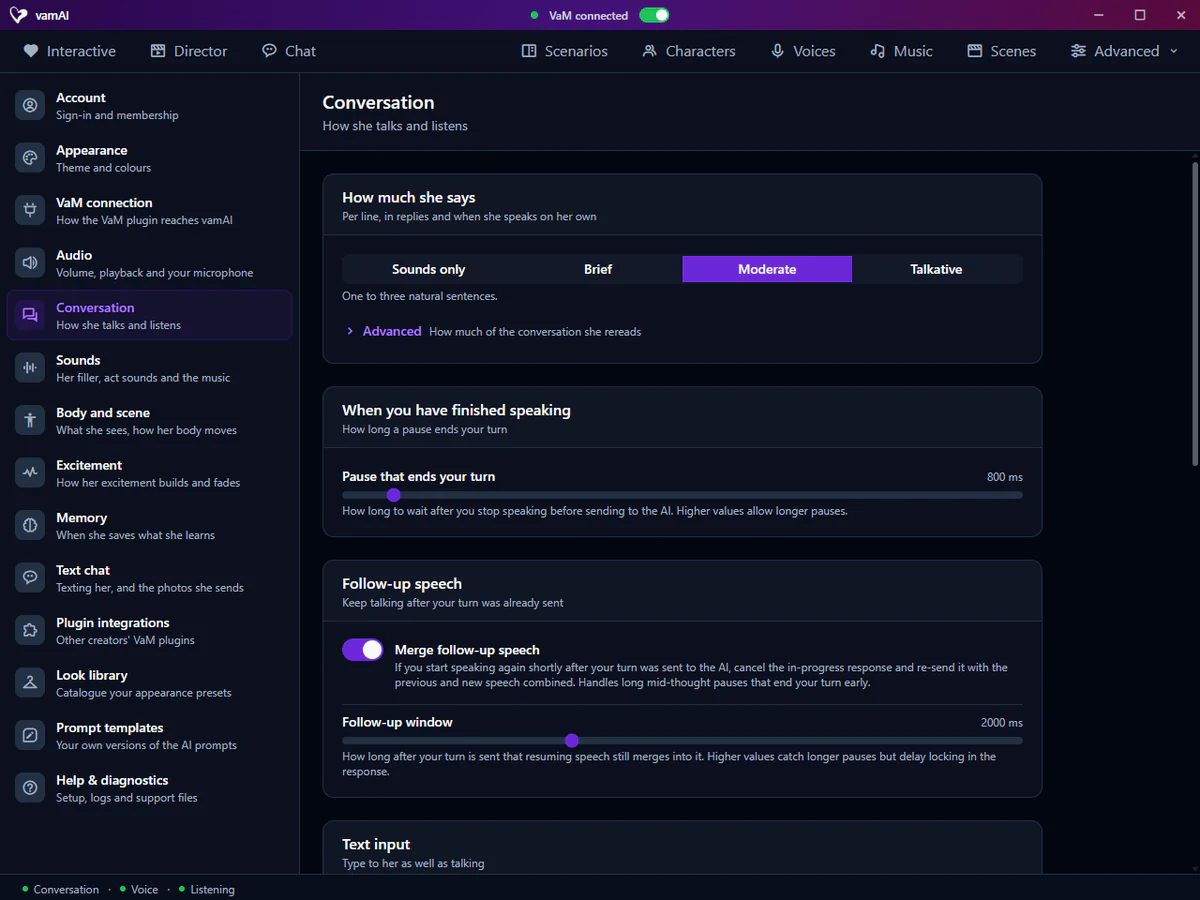
Settings saves as you go. There's no Save button: a small Saved note appears at the bottom of the section list after each change.
The sections
| Section | What you'll change there | Guide |
|---|---|---|
| Account | Signing in with Patreon, your membership and this computer's license. | Signing in & devices |
| Appearance | The app's colour theme. | Appearance & themes |
| VaM connection | How vamAI and the VaM plugin find each other. Most people never touch it. | Connection settings |
| Audio | Volume, speaking speed and your microphone. | Audio & volume · Microphone & speech |
| Conversation | How she talks and listens in a session: how much she says, when your turn ends, typing, captions in VaM, excitement from talk and what she does on her own. | Live conversations · Acting on her own |
| Sounds | Her filler audio, act sounds and the music's volume, in Interactive and Director alike. | Filler audio · Act sounds · Background music |
| Body and scene | What she sees when a session starts, her idle motion, her facial expressions, and whether she undresses on her own. | Idle motion · Facial expressions |
| Excitement | How her excitement builds from what's happening in the scene and fades again. See below. | — |
| Memory | When vamAI saves what your characters remember. | Memory & conversations |
| Text chat | Whether she may send you photos while you text in the Chat tab (She can send you photos). Photos need a Venice key. | Live conversations |
| Plugin integrations | Lets supported VaM plugins from other creators join your session, and puts them back as they were afterwards. In Max. | Plugin integrations |
| Look library | Your VaM folder (music and expressions need it too, in every plan), and the catalogues of your looks, outfits, clothing, poses and places, so she can find the one you ask for. Her changes from the catalogues are in Max. | Looks, outfits and places |
| Prompt templates | Replace the built-in instructions that shape how characters think and speak with your own wording. Most people never need this. | Prompt templates |
| Help & diagnostics | Run the setup again, open the logs folder, or export a diagnostics file for support. | Help & diagnostics |
Turning the VaM connection on or off isn't in Settings. It's the switch in the title bar at the top of the window. See Connection settings.
Excitement
Her excitement is a level from 0 to 100 that rises with what the bodies in your scene are doing and fades when things calm down. It's what her filler audio, her breathing, her face and her climax follow. While a session runs, the Scene section on the Interactive tab shows it.
The defaults suit most people. The Activity card has two numbers: Starts building at (below this much activity, her excitement doesn't rise) and Builds fastest at. Under Advanced are Rise per second, Fall per second, Highest excitement (she can only climax at 100) and Hold before falling.
What you say can raise it too: that's Excitement from talk, in Conversation. And with Track arousal from touch on in the vamAI plugin, touch can lift it higher, never lower.
Prompt templates
For tinkerers. Turn on Use my prompts, then edit any of the instructions vamAI gives the AI. Your versions are saved in data/custom-prompts/ in the vamAI folder and apply from the next session. Turn the switch off to go back to the built-in prompts at any time.
Help & diagnostics
This section is your first stop when something needs fixing.
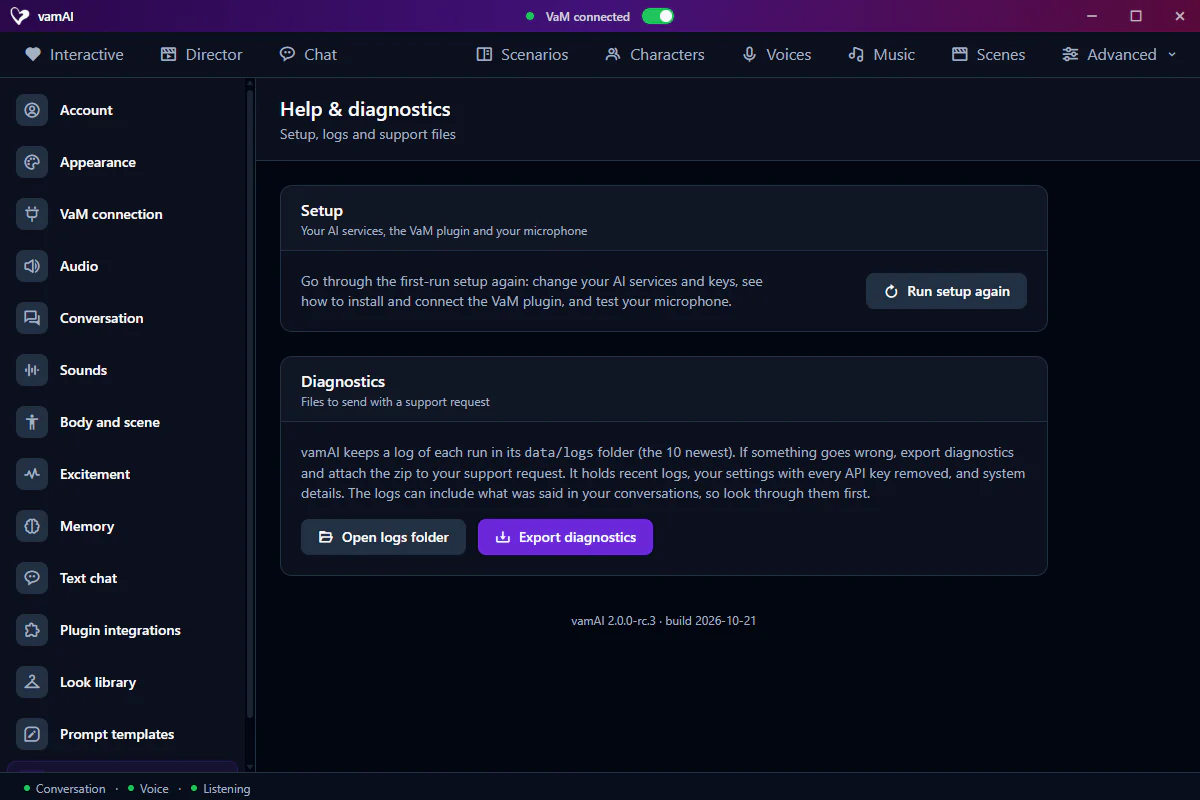
- Run setup again takes you back through the first-run steps: your AI services and keys, how to install and connect the VaM plugin, and a microphone test. Nothing you've set up is lost.
- Open logs folder opens the
data/logsfolder inside your vamAI folder. vamAI writes one log per run and keeps the 10 newest. - Export diagnostics saves a zip file wherever you choose. It holds your most recent logs, your settings with every API key removed, basic system details and any crash reports. Nothing is uploaded; you decide who gets it.
Logs can include what was said in your conversations. Look through the zip before you send it to anyone.
Next steps
Set up the services that power your character in Choosing your AI services, or start talking in Live conversations. If something isn't behaving, see Troubleshooting.