
OpenAI-compatible services
Use OpenAI, OpenRouter, xAI, or a language model running on your PC in LM Studio or Ollama for her conversation.
Many services speak the same "OpenAI-compatible" language. vamAI can use any of them for her conversation: OpenAI itself, OpenRouter, xAI (Grok), or a model running on your own PC in LM Studio or Ollama.
This page walks you through it. You'll pick a service, add a key if it needs one, choose a model, and tell vamAI what that model can do.
Setting it up
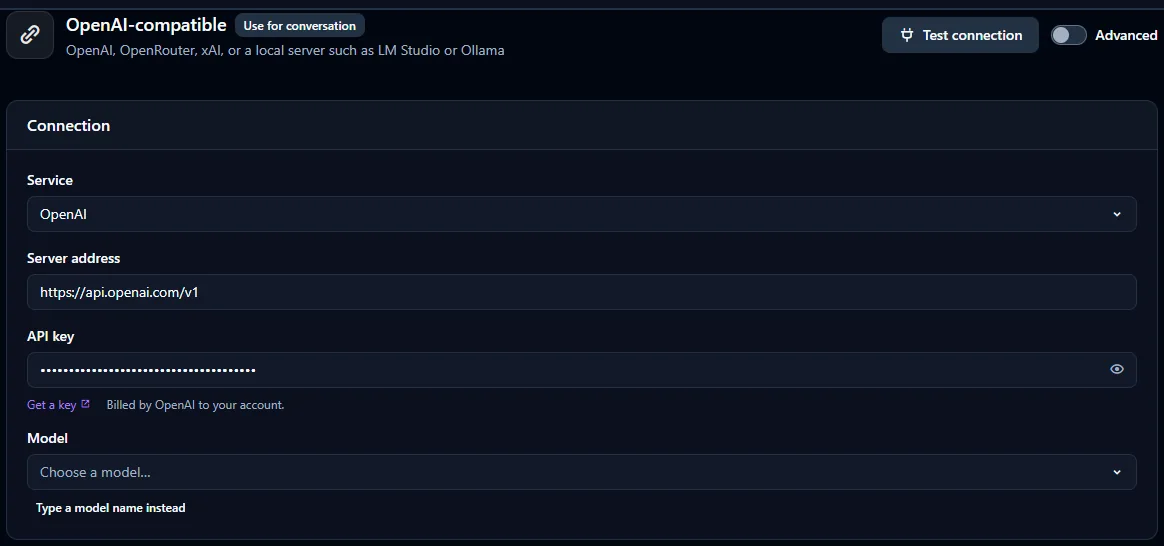
- Open Advanced → Providers and choose OpenAI-compatible in the list on the left.
- Under Connection, pick a Service. This fills in the Server address for you.
- Paste your API key, if the service needs one.
- Choose a Model from the list, or choose Type a model name instead and type it.
- Choose Test connection.
- Choose Use for conversation beside its name to use it for her conversation. In use shows when it is.
You can also choose it during setup, under Service for conversation.
The services
| Service | Server address | Key | Who bills you |
|---|---|---|---|
| OpenAI | filled in for you | Required | OpenAI |
| OpenRouter | filled in for you | Required | OpenRouter |
| xAI (Grok) | filled in for you | Required | xAI |
| Local server (LM Studio / Ollama) | LM Studio's address, which you can change | Usually none | Nobody: it runs on your PC |
| Another OpenAI-compatible server | You enter it | Only if it asks for one | Whoever runs it, if they charge |
For the services that need one, Get a key under the key field opens their page for creating a key.
Switching to a different service clears the key and model you entered. vamAI never sends a key meant for one service to another.
Using a model on your PC (LM Studio or Ollama)
- Install LM Studio or Ollama. The links are under the key field (Get LM Studio, Get Ollama).
- Download a model in it and start its server.
- In vamAI, choose Local server (LM Studio / Ollama).
- Check the Server address:
- LM Studio:
http://127.0.0.1:1234/v1(filled in for you) - Ollama:
http://127.0.0.1:11434/v1
- LM Studio:
- Leave the key empty unless your server asks for one.
- Choose the model and Test connection.
Nothing is billed: it all runs on your PC. How fast she answers depends on your PC and the model you choose.
Prefer something simpler? vamAI's own Local model runs a model on your PC without any extra software. See Running AI on your PC.
Choosing a model
Once vamAI can reach the service, it loads the list of models the service offers. Pick one, or choose Type a model name instead and type it exactly as the service knows it. If the list doesn't appear, choose Load the model list.
When you test, vamAI tells you how many models the service offers, and warns you if none of them has the name you typed.
What the model can do
Services don't say what their models can do, so vamAI asks you. Set these to match the model you use. The presets choose sensible starting points.
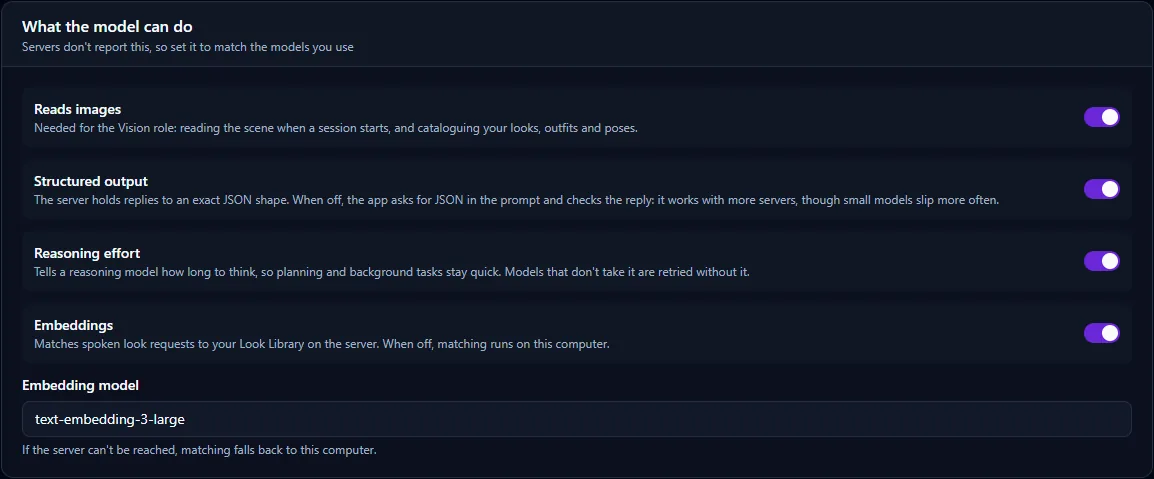
| Switch | Turn it on when… | If it's off |
|---|---|---|
| Reads images | Your model understands pictures. | She can't look at your scene when a session starts, and vamAI can't catalogue your looks, outfits and poses. |
| Structured output | The service can hold replies to an exact format. Most can. | vamAI asks for the format in words and checks the reply. That works with more services, but small models slip more often. |
| Reasoning effort | Your model is a "thinking" model that takes a time limit. | Thinking models may take longer on planning and background work. If a model doesn't accept it, vamAI simply tries again without it. |
| Embeddings | The service offers an embedding model (OpenAI does). | Matching what you ask for against your Look library runs on your PC instead. |
If Reads images is off, the Vision role in Model roles shows a reminder: reading the scene and cataloguing your library are unavailable until you turn it on for a model that accepts images.
Advanced
With the Advanced switch on, you can set a Timeout (ms): how long vamAI waits for an answer before giving up. Slow models on modest PCs may need longer. The Model roles card lets you choose a different model for each kind of work. See Model roles.
If the test fails
| You see | What to do |
|---|---|
| Nothing is answering at 127.0.0.1:1234. Is the server running? | Start the server in LM Studio or Ollama, then test again. |
| The server rejected the key (401). | Check the key. For a local server, clear the key unless it asks for one. |
| The server needs an API key (401). | This service needs a key. Paste one in. |
| Nothing was found at that address (404). Check the server address — most end in /v1. | Fix the address. Most end in /v1. |
| The account has run out of credit (402). | Add credit with the service, then test again. |
| … could not be found. Check the server address. | There's a typo in the address. |
More messages are explained in Error messages explained.