
Running AI on your PC
Download and run Whisper, a local language model and Audio2Face on your own computer.
Three parts of vamAI can run on your own PC instead of an online service. You download them from inside the app, when you want them.
| Local service | What it does | In Providers, under |
|---|---|---|
| Whisper | Listens to your microphone and turns your speech into text. | Listening |
| Local model | A language model that writes her replies, running on your PC. | Conversation |
| Audio2Face | Detailed lip-sync: her mouth follows every word she says. | Lip sync |
Running them locally means no per-use bills for those parts, and what they handle stays on your computer. The trade-off is that they work your graphics card hard, alongside Virt‑A‑Mate, and they take several gigabytes of downloads.
Her voice always comes from an online voice service: ElevenLabs, Deepgram or Hume. There's no local voice, so you still need an internet connection and a key for one of them, even if everything else runs on your PC. See Adding your API keys.
Before you start
- Sign in. Local services download from vamAI, so you need to be signed in under Settings → Account. See Signing in & devices.
- Check your membership. The local services are in both memberships, Pro and Max, and in the 7-day free trial. Settings → Account shows what yours includes.
- Check your graphics card. See What your graphics card needs below.
- Leave room on your disk. Downloads go into the
sidecarsandmodelsfolders inside your vamAI folder, and they're kept when you update vamAI.
Setting one up
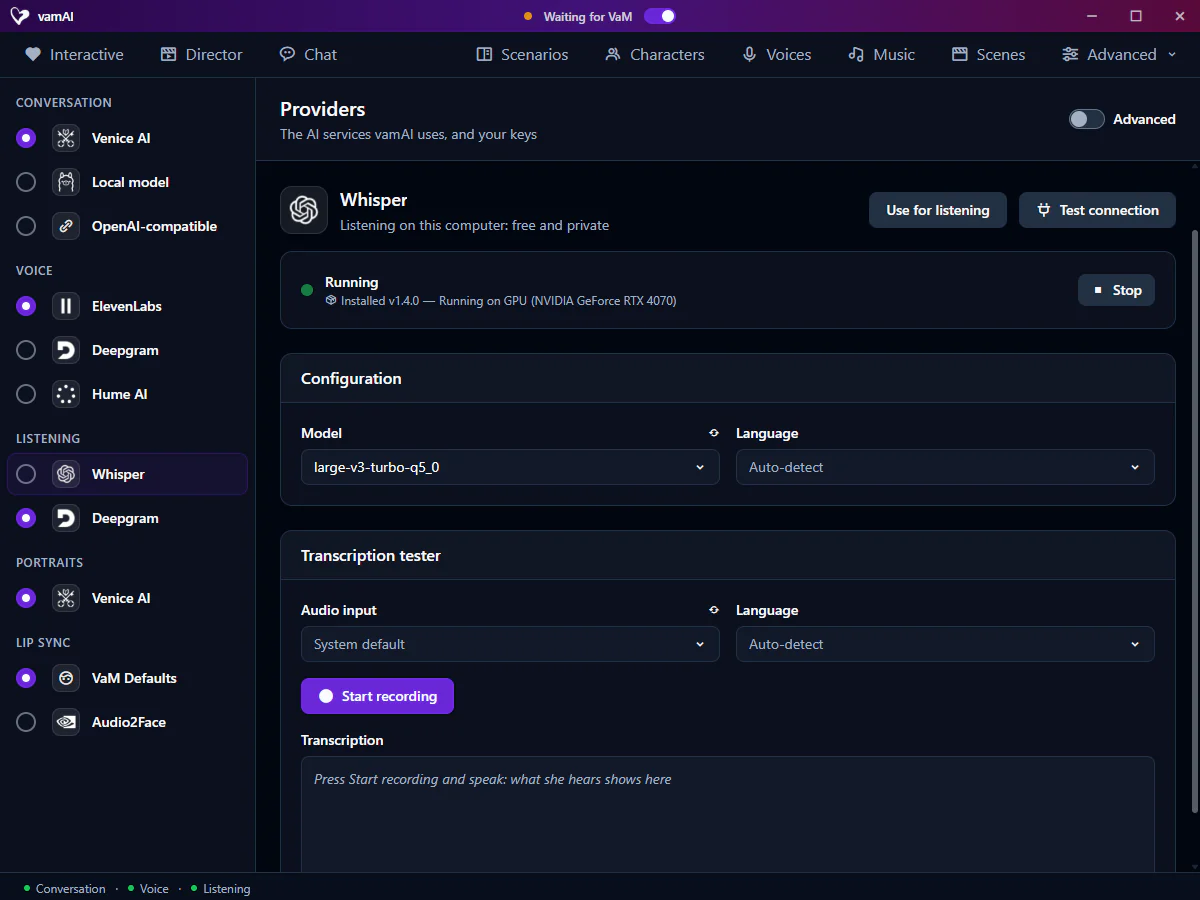
Open the Advanced menu → Providers, then choose Whisper, Local model or Audio2Face in the list on the left.
1. Download the program
The status card at the top of the page reads Not installed. Press Download. A progress window shows how far it has got, and you can cancel it.
2. Download a model
A local service needs a model before it can start, and Start stays greyed out until it has one.
- Whisper: open the Model list. Models you haven't downloaded yet are greyed, each with its size and a Download button. One is marked Recommended. When the download finishes, it's selected for you.
- Local model: next to Model (GGUF), press Browse… to use a model file you already have, or pick one under Downloaded models.
- Audio2Face: download a model from the Character model list.
3. Make it active and start it
- Press Use for … next to the service's name (Use for listening, Use for conversation or Use for lip sync), so vamAI uses it. In use shows when it is.
- Press Start. The status changes from Not running to Starting…, then Running when it's ready.
- Press Test connection to check it answers.
From then on, vamAI starts the service by itself whenever it opens, as long as it's your active choice. You'll see it on the Getting ready screen at start-up. If it isn't downloaded yet, that screen says so and vamAI carries on without it.
When a newer version of a program or model is out, its card shows available next to the version, with an Update button.
What your graphics card needs
| Local service | Graphics card |
|---|---|
| Whisper | Fastest on an NVIDIA card: RTX 20-series or GTX 16-series or newer, with driver 527.41 or later. Without one it runs on the processor, which works but is slower. |
| Local model | vamAI downloads the right version for your PC: one for NVIDIA cards, one for other graphics cards (AMD and Intel), or a processor-only one. Bigger models need more graphics memory. |
| Audio2Face | Needs an NVIDIA card: RTX 20-series or GTX 16-series or newer, with driver 527.41 or later. There's no processor-only option. |
Your graphics memory is shared with Virt‑A‑Mate, which uses a lot of it. The GPU bar at the bottom right of the vamAI window shows how much is in use. If things slow down, run fewer local services at once, or choose a smaller model.
Switch on Advanced at the top right of a service's page to see extra options, such as Acceleration (automatic, graphics card, or processor). The automatic choice is right for most PCs.
Whisper: listening on your PC
Choose a Model and a Language, or leave the language on Auto-detect. Larger models are more accurate but slower and need more graphics memory; the Recommended one is a good balance.
Once Whisper is running, the Transcription tester appears at the bottom of its page. Press Start recording and say something to check it hears you.
Local model: a language model on your PC
The local model runs a model file in the GGUF format, either one you already have or one downloaded from the list. How well she converses depends on the model you choose, and bigger models need a stronger PC.
Prefer to run models in LM Studio or Ollama instead? vamAI can use those too. See OpenAI-compatible services.
Audio2Face: detailed lip-sync
Audio2Face has its own guide: Facial animation & lip-sync.
Troubleshooting
| What you see | What to do |
|---|---|
| Start is greyed out | Download a model first (step 2). |
| "Sign in to download add-ons…" | Sign in under Settings → Account, then try the download again. |
| "… isn't downloaded yet. Download it in Providers." | Open the service in Providers and download it. |
| "… isn't running on this computer. Start it in Providers." | Open the service in Providers and press Start. |
| "… didn't start in time." | Try again. If it keeps happening, close other programs that use the graphics card. |
| Everything slows down | Your graphics memory is full. Use a smaller model, or run fewer local services. |
Error messages explained covers every message in more detail.
Next steps
Make each service active in its category, then start talking in Live conversations. To compare all your options, see Choosing your AI services.