
Facial animation & lip-sync
Choose how your character's face moves while she speaks, from VaM's own behaviour to detailed Audio2Face lip-sync.
When your character talks, her face should move with the words. You choose how that happens under Lip sync on the Providers page. There are two options, and the default needs nothing from you.
Where to find it
Open the Advanced menu → Providers, and look under Lip sync in the list on the left. The filled circle marks the one in use.
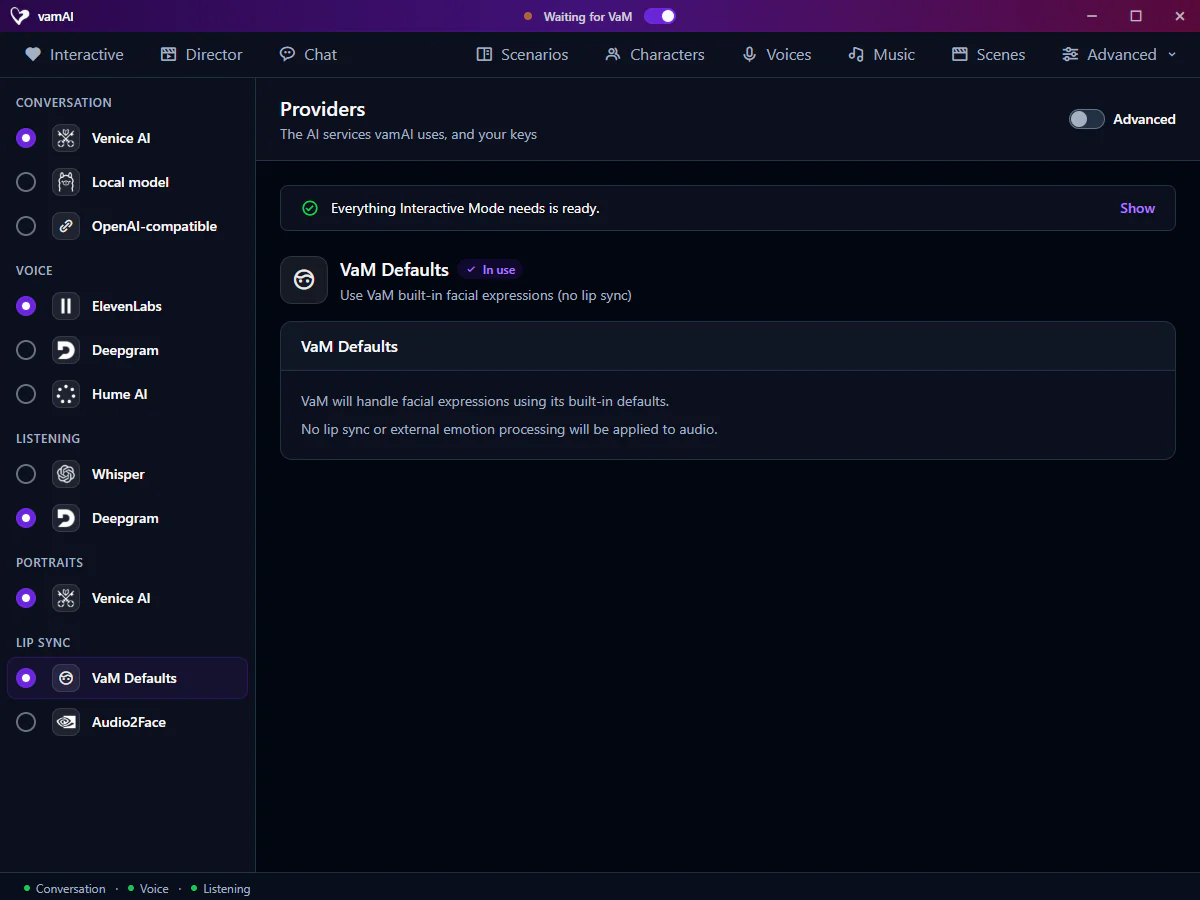
Your two choices
| Option | What it does | Best for |
|---|---|---|
| VaM Defaults (the default) | Virt‑A‑Mate looks after her face itself, the way it does in any scene. vamAI adds no lip-sync of its own. | Everyone. Nothing to download, nothing to start. |
| Audio2Face | A local service listens to each line she speaks and moves her mouth and face to match, word by word. | Anyone with a recent NVIDIA graphics card who wants the most lifelike speech. |
VaM Defaults
With VaM Defaults, vamAI leaves her mouth to Virt‑A‑Mate: her jaw moves with the sound of her voice, the way VaM moves it for any sound a character makes, but her lips don't shape the words. There's nothing to install and it works on every PC. If you're not sure, stay here.
Facial expressions work with either choice.
Audio2Face
Audio2Face runs on your own PC. It turns her speech into detailed mouth shapes and expressions as she talks, so her lips follow what she's saying far more closely.
To set it up:
- Select Audio2Face under Lip sync.
- Press Download on the status card to get the program.
- Download a model from the Character model list.
- Press Use for lip sync, then Start.
Once it's active, vamAI starts it by itself every time it opens. The download, update and sign-in steps are the same as for the other local services; see Running AI on your PC.
Audio2Face needs a compatible NVIDIA graphics card: RTX 20-series or GTX 16-series or newer, with driver 527.41 or later. On other PCs, the page shows a notice saying so, and it won't start. Stay on VaM Defaults instead.
The first start is slow. Audio2Face prepares itself for your exact graphics card the first time, which can take up to ten minutes. Let it finish. Later starts are much quicker.
If Audio2Face can't start for any reason, vamAI falls back to VaM Defaults, so she still speaks.
Adjusting the animation
The Morph animation card is where you tune her face. The defaults suit most characters, so change one thing at a time.
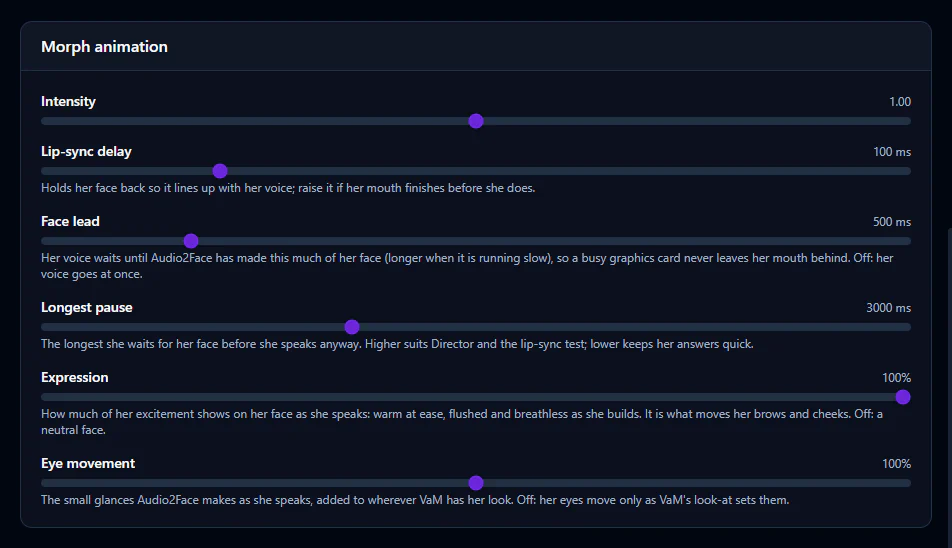
| Setting | What it does |
|---|---|
| Intensity | How strongly her mouth moves. Lower for subtler, higher for stronger. |
| Lip-sync delay | Holds her face back so it lines up with her voice. Raise it if her mouth finishes before she does (a wireless headset often needs more); lower it if her mouth trails her voice. 100 ms by default. |
| Face lead | Her voice waits until Audio2Face has made this much of her face, so a busy graphics card never leaves her mouth behind. Off lets her voice go at once. |
| Longest pause | The longest she waits for her face before she speaks anyway. Lower keeps her answers quick. |
| Expression | How much of her excitement shows on her face as she speaks: warm at ease, flushed and breathless as she builds. It's what moves her brows and cheeks. Off keeps a neutral face. |
| Eye movement | The small glances Audio2Face adds to wherever VaM has her look. Off leaves her eyes to VaM. |
With Facial expressions on, the feeling of what she says tints her face here too. Her blinks always stay VaM's own. Switch on Advanced at the top right of the page for finer controls.
Trying it: the Lip-sync test
The Lip-sync test card, under it, has her say a line in VaM so you can see your settings on her face. Choose Who speaks, a Voice and a Line (or one of the voice's filler clips), then Say it in VaM. Play again replays the same line without paying for it twice, so you can change a slider and compare. It needs VaM connected, Audio2Face in use and running, and no session running.
Audio2Face shares your graphics card with Virt‑A‑Mate. If your scene slows down, keep an eye on the GPU bar at the bottom right of the vamAI window.
Which should I pick?
- Just want it to work? Leave it on VaM Defaults.
- Want the most realistic speech, and have a recent NVIDIA card? Try Audio2Face, and be patient through the first start.
You can switch between them any time. Lip-sync is in both memberships, Pro and Max, and in the 7-day free trial; Settings → Account shows what yours includes.
Next steps
Bring everything together in Live conversations, or see every service at a glance in Choosing your AI services.