
Error messages explained
What vamAI's error messages mean and what to do about each one, grouped by where they come from.
When something goes wrong, vamAI tells you in a plain sentence: what happened, and what to do next. This page lists those sentences, so you can look one up and see what's behind it.
How errors look
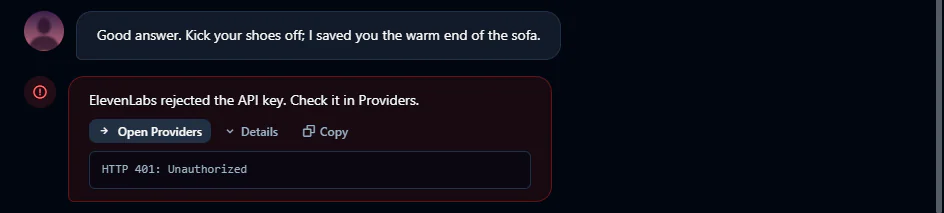
- The sentence says what happened and what to do.
- A button, when one thing fixes it: Open Providers, Retry, Check microphone, Connect VaM or Open Account.
- Details opens the technical text behind the message. It never contains your keys. Support may ask you for it.
The name in each message changes to match the service involved. Below, Service stands for that name: Venice, ElevenLabs, Deepgram, Hume and so on.
Your AI service keys and accounts
| Message | What it means | What to do |
|---|---|---|
| Service rejected the API key. Check it in Providers. | The service didn't accept your key. It may be wrong, incomplete or deleted. | Open Providers, paste the key again and Test connection. |
| Service didn't accept this key. Check you copied all of it, with nothing extra. | The same, while testing a key. | Copy the key again from the service's website, without spaces at either end. |
| Service accepted the key, but it isn't allowed to do this. | The key works, but lacks a permission this needs. | Check the key's permissions on the service's website, or create a new key with full access. |
| Your Service account is out of credit. Add credit on the Service website, then try again. | Your account at that service has run out of money or allowance. | Top up on the service's website. vamAI has no credit of its own. |
| Add your Service API key in Providers. | This service has no key yet. | Open Providers and add it. See Adding your API keys. |
| Service couldn't find the voice or model it was asked for. Choose another in Providers. | The voice or model you picked no longer exists there, or your account can't use it. | Choose another one in Providers, or another voice for your character. |
| Service is limiting requests right now. Wait a moment, then try again. | You've sent a lot in a short time, or your plan with that service has a limit. | Wait a little and Retry. |
| Service had a problem on their side. Try again shortly. | The service itself is having trouble. A number in brackets is its error code. | Retry in a few minutes. |
| Service answered with an error (…). | The service refused the request for another reason. | Check Details. If it keeps happening, see Getting help. |
Connection problems
| Message | What it means | What to do |
|---|---|---|
| Couldn't reach Service. Check your internet connection, then try again. | vamAI couldn't get through to the service. | Check you're online. A firewall or VPN can also block it. |
| Service didn't answer in time. Check your internet connection, then try again. | The service took too long. | Retry. If it happens often, your connection may be slow or the service busy. |
Your own server (OpenAI-compatible)
These appear when you use a server by its address, such as LM Studio or Ollama. See OpenAI-compatible services.
| Message | What to do |
|---|---|
| Nothing is answering at [address]. Is the server running? | Start the server (in LM Studio or Ollama), then try again. |
| [address] could not be found. Check the server address. | Fix the address in Providers. |
| Nothing was found at that address (404). Check the server address — most end in /v1. | Fix the address. Most end in /v1. |
| The server needs an API key (401). | Paste the server's key into API key. |
| The server rejected the key (401). | Check the key, or clear it if the server doesn't use one. |
| The key does not have access to this (403). | Use a key with access, or another model. |
| The account has run out of credit (402). | Add credit with the service. |
| The server is limiting requests right now (429). Wait a moment and try again. | Wait, then Retry. |
| No answer from [address] within … seconds. | The model is slow. Try a smaller model, or raise the Timeout (ms) under Advanced. |
Your microphone
| Message | What to do |
|---|---|
| vamAI isn't allowed to use your microphone. In Windows Settings → Privacy & security → Microphone, turn on access for desktop apps, then try again. | Do exactly that, then choose Check microphone or start again. |
| No microphone was found. Plug one in, or choose another in Settings → Audio. | Connect a microphone, then pick it. |
| The microphone chosen in Settings → Audio isn't connected. Plug it in, or choose another. | Reconnect it, or choose a different one. |
| Another app is using your microphone. Close that app, or choose another microphone in Settings → Audio. | Close the app that's holding it (a call or recording app, for example). |
| The microphone couldn't be started. Check it in Settings → Audio. | Check the microphone works in Windows, then choose it again. |
See Microphone & speech.
Virt‑A‑Mate
| Message | What to do |
|---|---|
| VaM isn't connected. Load a scene with the vamAI plugin in VaM, then try again. | Open VaM and a scene with the vamAI plugin on her Person atom. Connect VaM shows the steps. See Connecting Virt‑A‑Mate. |
| Port 12605 is already in use, so the VaM plugin can't connect. | Another copy of vamAI (or another program) is using the port. Close it, then turn on the VaM connection switch in the title bar, or restart vamAI. Or change the port in Settings → VaM connection (under Advanced) and set the same port in the plugin's Settings tab. |
Music and expressions
| Message | What to do |
|---|---|
| Making music needs your ElevenLabs API key. Add it in Providers; the tracks you already have play without it. | Add your ElevenLabs key in Providers. See Background music. |
| Music needs a paid ElevenLabs plan… | Upgrade your plan on the ElevenLabs website. Tracks you already have still play. |
| Your ElevenLabs account doesn't have enough credits left for this track… | Add credits on the ElevenLabs website, or choose a shorter track. |
| Music plays from your VaM folder. Choose the folder VaM is installed in under Settings → Look library. | Choose the folder that contains AddonPackages. |
| Her expressions use morphs from your VaM folder. Choose the folder VaM is installed in under Settings → Look library. | The same: choose your VaM folder. See Facial expressions. |
| Her face shows no expressions until your VaM folder has these packages: … | Download the AshAuryn packages it names from the VaM Hub. See the packages to install. |
| The vamAI plugin in VaM is too old to play music. / …too old to show expressions. | Download the newest plugin and reload it in VaM. See Updating & uninstalling. |
Services on your PC
These are about Whisper, the local language model and Audio2Face. See Running AI on your PC.
| Message | What to do |
|---|---|
| Whisper isn't running on this computer. Start it in Providers. | Open Providers and choose Start on its card. |
| Whisper isn't downloaded yet. Download it in Providers. | Open Providers and choose Download. |
| Whisper didn't start in time. Try again; if it keeps happening, close other programs that use the graphics card. | Your graphics card may be busy or low on memory. Close other programs that use it, then Retry. |
| Whisper didn't start. Try again, or check it in Providers. | Retry. If it keeps failing, download it again from Providers. |
Downloads
| Message | What to do |
|---|---|
| Sign in to download add-ons. Open Settings → Account to sign in with Patreon. | Downloads need you to be signed in. See Signing in & devices. |
| Your vamAI sign-in has expired or was removed. Sign in again under Settings → Account to download. | Sign in again, then download again. |
| The download link expired before the download finished. Try again. | Start the download again. |
| The download was damaged on the way, so it wasn't installed. Try again. | Start it again. Nothing broken was installed. |
| That file isn't on the download server. Try again later. | It may be being updated. Try again later. |
| The download server is busy or had a problem (…). Try again shortly. | Wait a few minutes, then Retry. |
Sign-in and membership
| Message | What to do |
|---|---|
| That code isn't right. Check it and try again, or start the sign-in again. | Copy the code from the website again. |
| That code has expired. Start the sign-in again to get a new one. | Codes work for 5 minutes. Start again. |
| That code has already been used. Start the sign-in again to get a new one. | Start again for a fresh code. |
| That code was made for a different sign-in. Start again from this app. | Start the sign-in from this vamAI window and use the code it leads to. |
| We didn't hear back from your browser. | If the website showed you a code, enter it in Sign-in code and choose Continue with this code. Otherwise choose Start again. |
| Sign-in was cancelled on the website. | Start again when you're ready. |
| Your browser didn't open. | Use the link vamAI shows to open the sign-in page yourself. |
| Your vamAI sign-in has expired or was removed. Sign in again under Settings → Account. | Sign in again. Your data on this PC is untouched. |
| This computer was signed out of your account, perhaps from the website. | Sign in again to continue. |
| This computer was removed from your account. Sign in again to add it back. | Sign in again. |
| Your membership is already in use on as many computers as it allows. | Remove a computer on the website, then try again. See Devices. |
| This computer has recently been used with other vamAI accounts, so it can't be added to this one yet. | A computer can only move between accounts now and then. Try again later. |
| You've removed several computers recently. You can remove another one later. | Removals are limited. Try again later. |
| Start your 7-day free trial to use …, or join on Patreon (Settings → Account). | You have no membership on this computer. Start your free trial or join Pro or Max, in Settings → Account. See Your membership. |
| Max includes …, and Pro doesn't. Upgrade to Max on Patreon (Settings → Account). | That feature is only in Max: her changes in your VaM scene. Change your tier to Max on Patreon, then choose Check now in Settings → Account. |
| Pro keeps up to 3 saved characters. Remove one, or upgrade to Max for as many as you like. | Delete a character you no longer use, or move to Max. |
| Without a membership, vamAI keeps 1 saved character. Start your 7-day free trial, or join on Patreon, for more (Settings → Account). | Start your free trial or join Pro or Max. See Your membership. |
| Couldn't reach vamAI. Check your internet connection, then try again. | vamAI's server couldn't be reached. Your membership keeps working offline for a while. |
| vamAI's server had a problem. Try again in a few minutes. | Wait and try again. |
| Too many attempts. Wait a few minutes, then try again. | Wait a few minutes. |
General messages
| Message | What to do |
|---|---|
| Couldn't start the session (or another action). / Something went wrong. | vamAI didn't recognise the problem. Open Details, try again, and if it keeps happening, export diagnostics. |
| Your saved API keys could not be read on this computer… Re-enter them in Providers (in the Advanced menu). | vamAI was moved to another PC or Windows account. Add your keys again. See Where your data lives. |
Messages that appear when vamAI starts (about Program Files, OneDrive or a recovered settings file) are explained in First launch on Windows.