
Interactive Mode
Talk with your character by voice or by text, live in your Virt‑A‑Mate scene.
Interactive Mode is the heart of vamAI. You talk, out loud or by typing, and your character answers in her own voice, right inside your Virt‑A‑Mate (VaM) scene. It's made to feel like a real conversation: no push-to-talk, no awkward pauses, her voice right there with you. She reacts to what happens around her, can act in the scene while you talk, and remembers what you share with her. If you try one thing first, make it this.
You'll find it on the Interactive tab, the first tab at the top of the app (the heart icon).
Before you start
Until you're ready to talk, the conversation area shows a Getting started checklist, which counts down what's left ("2 things and you're ready to talk").
- Add your AI provider keys. See Adding your API keys.
- Create a character. See Creating characters.
- Connect VaM. Add the vamAI plugin to her Person atom. It connects by itself. See Connecting Virt‑A‑Mate.
Each item has a button that takes you straight there. When VaM is linked, the title bar at the top of the window reads VaM connected with a green dot.
Interactive Mode, by voice and by text, is in both memberships, Pro and Max, and in the 7-day free trial. Settings → Account shows yours. If she has no voice, a session still works: you type, and she answers in text, which also shows as captions inside VaM, in VR too. See Captions in VaM.
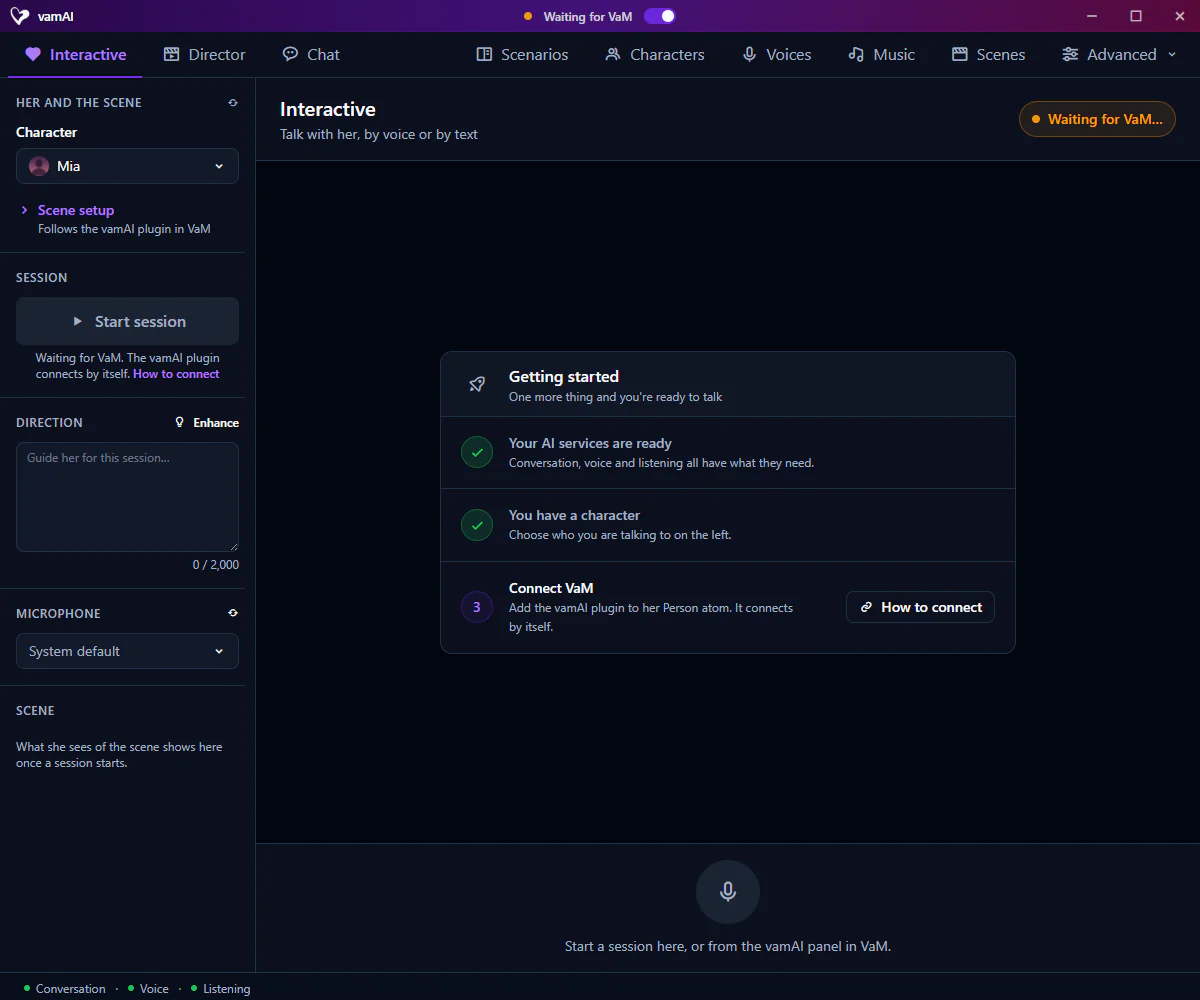
The Interactive tab at a glance
Everything you set up lives in the panel on the left. The conversation fills the rest of the page.
| Panel | What it's for |
|---|---|
| Character | Who you want to talk to, under Her and the scene. This brings her personality, her voice and her memories. |
| Scene setup | Who is who in your VaM scene. Her (atom) is the Person atom your character speaks and acts through; her voice comes from it. You (atom) is the one that stands for you. With one person in the scene, that person is her and the section stays folded; it opens by itself when there's a choice to make. |
| Session | Start session and Stop session. |
| Direction | An optional note that steers this one session, up to 2,000 characters. |
| Microphone | Which microphone vamAI listens to. System default uses your Windows default. |
| Scene | Fills in once a session starts, with what she noticed about the scene. |
The atom lists come from the scene you have loaded in VaM. If you've just added or renamed someone there, click the refresh button beside Her and the scene (Look for people in the VaM scene again).
Your choices here stay in step with the vamAI panel inside VaM. Pick a character or an atom in one place, and the other follows.
Direction
Direction is a stage note for one session. It changes the mood without editing the character. For example: "You've just got home after a week away and you've missed me," or "Keep it light and playful tonight." Leave it empty for an ordinary conversation.
Not sure how to word it? Click Enhance, describe what you want changed in What should change?, and the direction is rewritten for you. If you prefer what you had, Undo puts it back.
Direction is locked while a session runs, so set it before you start.
Starting a session
- Choose your Character.
- Check Her (atom) and You (atom) under Scene setup.
- Add a Direction and choose a Microphone, if you like.
- Click Start session.
You can also start from inside VaM: open the vamAI panel on the plugin, choose a Character and press Start talking. If it can't start, the panel's status bar says why.
While a session starts, the Session section shows each step as it happens, with Cancel if you change your mind. She first takes a look at your scene. This takes a moment. What she saw appears under Scene, as What she sees and the Opening moment. Then your microphone opens by itself. You don't need to press anything to start talking.
If Start session is greyed out, the line under it tells you why:
- "Waiting for VaM. The vamAI plugin connects by itself." Load your scene with the plugin in VaM. The How to connect link opens the steps.
- "Create a character to talk to." The Open Characters link takes you there.
- "Choose a character above to begin." Pick someone from Character.
Following the conversation
Once a session is live, a badge at the top right shows what's happening:
| Badge | What it means |
|---|---|
| Listening | She's ready for you. Go ahead and talk. |
| Hearing you | She's picking up what you say. |
| Thinking | You've finished; she's working out her reply. |
| Getting her voice ready | Her reply is written and her voice is on its way. |
| Speaking | She's answering out loud. |
| Muted | Your microphone is muted. |
| Text only | She has no voice in this session, so you type to her. |
Your words and hers appear as messages, and her reply fills in as she speaks.
If something goes wrong, you'll see a short message in plain words, often with a button that fixes it, such as Open Providers. Details shows the technical text, which helps if you ask for support. If a session fails to start, Retry tries again. Error messages explained lists what each message means.
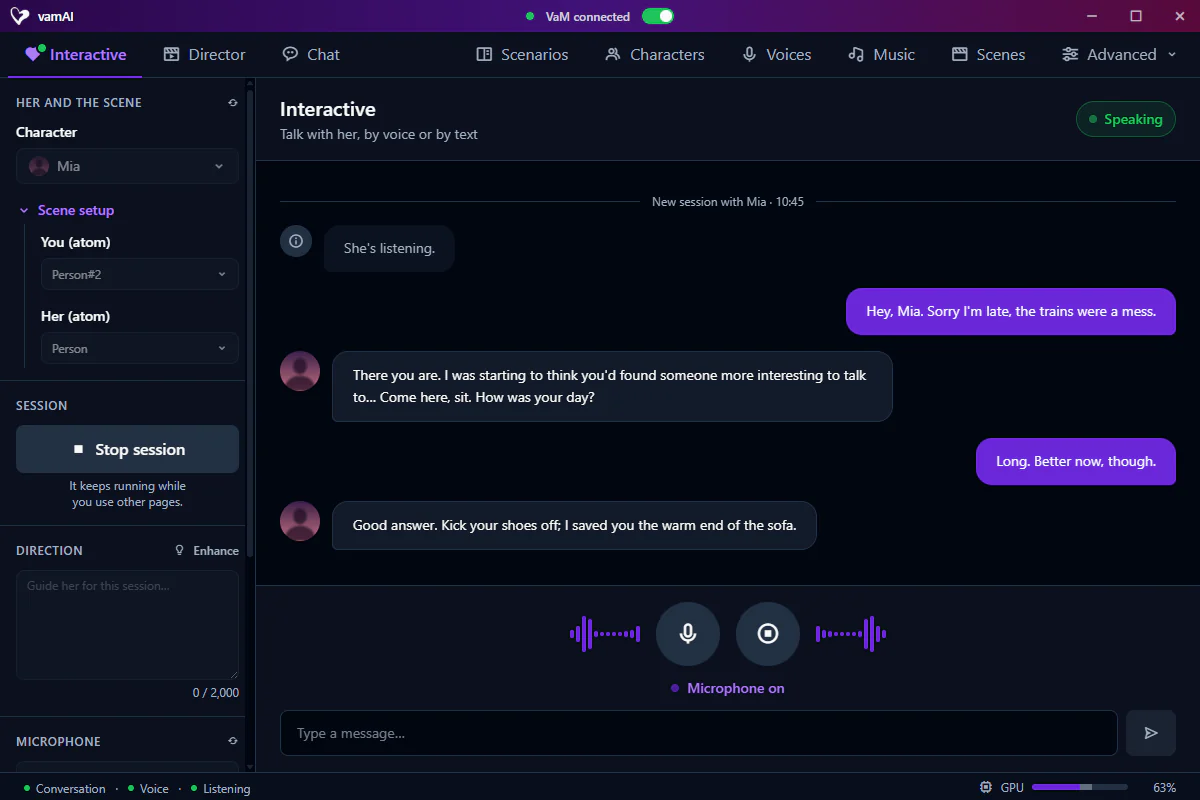
Talking
At the bottom of the page is a large round microphone button, with level bars on each side that move with your voice. Underneath, Microphone on means she can hear you.
- To talk: just speak.
- To go quiet: click the microphone button (or press Ctrl+M). It reads Microphone muted until you click it again.
- To stop her mid-reply: click the round stop button beside it (Stop her), or press Esc.
If the bars don't move when you talk, check the Microphone choice on the left. See Microphone & speech for more.
Talking over her
You don't have to wait for her to finish. Start talking and she stops to listen. Sending a typed message does the same.
With Deepgram listening, she stops almost as soon as you speak. With Whisper, she stops once you pause, because Whisper only finishes a phrase when you stop talking.
Pausing mid-thought
When you stop talking, vamAI waits a short moment, then sends what you said. If you carry on soon after, your new words are joined to what you'd already said and she answers both together. The pause that ends your turn is mostly your listening service's Endpointing (in Providers); the back-up and the joining are in Settings → Conversation, under When you have finished speaking and Follow-up speech. See Microphone & speech.
Typing instead of talking
During a session, a Type a message… box sits under the microphone. Type and press Enter, and she answers just as if you'd spoken. It's on by default; you can hide it with Enable text input in Settings → Conversation.
Captions in VaM
Her words can show inside VaM as captions: in a headset they sit in the lower part of your view, wherever you look, and on the desktop at the bottom of the screen. Long replies show a sentence or two at a time, so they are easy to read.
Choose when in Settings → Conversation → Captions in VaM:
- Text only (the default): when she has no voice, her replies show in VaM, so you can follow the conversation without taking your headset off.
- Always: her words also show as subtitles while she speaks, timed to her voice. This works in Director Mode too.
- Off: nothing is shown in VaM. Her replies are still in the app.
Turn on Show what you said to see your own words as well, in a different colour, so you can check what she heard.
To make captions bigger or smaller, open the vamAI panel in VaM and go to Settings → Captions (The vamAI panel in VaM). Show a sample lets you check the size and position right away. When you interrupt her, her caption goes with her voice.
What she can do in your scene
A conversation isn't only words. While you talk, she can:
- Act in the scene. If you've set up a Scene for the VaM scene you have loaded, she can use its actions as the moment suits.
- Change her look, her outfit or where you are, when you ask. See Looks, outfits and places.
- Use other creators' VaM plugins, such as Glance or Naturalis. See Plugin integrations.
- Put music on from the tracks you've made. See Background music.
- Speak up on her own when you go quiet. See Acting on her own.
- Remember you from one session to the next. See Character memory.
And without being asked, she stays alive in the scene: she breathes, moves a little and looks at you (Idle motion), her face shows what she feels (Facial expressions), and soft sounds fill the pauses (Filler audio, Act sounds).
Acting in the scene, changing her look, her outfit or the place, and other creators' plugins are in Max (and the free trial); in Pro she talks, remembers and speaks up on her own, and your scene changes only when you change it. Settings → Account shows what yours includes.
Settings that shape a session
They're in three sections of Advanced → Settings. Conversation is how she talks and listens:
| Card | What it does |
|---|---|
| How much she says | How much she says per line: Sounds only, Brief, Moderate or Talkative. Applies from your next session. |
| When you have finished speaking | Pause that ends your turn: how long a pause ends your turn. |
| Follow-up speech | Joins words you add right after a pause to the turn you'd just finished. |
| Text input | Shows the typing box during a session. |
| Captions in VaM | Shows her words inside VaM: Off, Text only or Always, and optionally your own words. See Captions in VaM. |
| Excitement from talk | How much your words affect her excitement. |
| Acting on her own | Lets her speak and act on her own. See Acting on her own. |
Body and scene is what she sees and how her body moves:
| Card | What it does |
|---|---|
| Reading the scene | Lets her look at the scene when a session starts, and sets the camera she looks through. |
| Movement | vamAI's movement analysis: what the bodies are doing, which drives her excitement and act sounds. Show in sidebar shows it in the Scene section. |
| Body and idle motion | Her small, natural movements. See Idle motion. |
| Expressions | Her mood on her face. See Facial expressions. |
| Clothing | Undress on her own: whether she may take clothes off, and put them back on, without being asked. In Max. |
Sounds holds Filler audio (soft sounds from her voice while she isn't talking), Act sounds and Music. See Filler audio, Act sounds and Background music.
To tell her about yourself, such as what to call you and what you enjoy, use Advanced → Preferences. Your profile applies from your next session.
Ending a session
Click Stop session, or press Stop talking in the vamAI panel in VaM.
A session keeps running while you use other pages. The title bar shows it, with a Stop button beside it; click the session there to come back to it.
Text chat without VaM: the Chat tab
Next to Director is the Chat tab: a text conversation with any of your characters, with no VaM scene needed. Choose a character, start a New conversation, and type in Type a message….
Conversations are saved, so you can come back to them. If you've set up a portraits service, she may now and then send you a picture (Settings → Text chat → She can send you photos). What she learns in chat becomes part of her memory, and deleting a conversation keeps what she remembers from it.
It's a lovely way to get to know a new character before you meet her in your scene.
If something isn't working
- She can't hear you: check the Microphone panel, then Microphone & speech.
- The title bar never reads VaM connected: see Connecting Virt‑A‑Mate.
- An error message appeared: see Error messages explained.
Everything else is in Troubleshooting.
Next steps
- Give her a voice that suits her: Voice library
- Let her fill the quiet moments: Acting on her own
- Prefer to watch a scene play out? Try Director Mode.